
A vertical screen can turn a crowded, low-performing desk into a sharper command center. But simply rotating a monitor is not enough. To arrange vertical monitors well, you need to account for sightlines, dominant tasks, desk depth, and the way your body naturally moves through a full workday.
For writers, developers, analysts, designers, and anyone working with long documents or tall windows, portrait orientation creates useful vertical real estate without demanding a wider desk. Done right, it brings more content into view, reduces unnecessary scrolling, and gives your setup a more intentional, elevated presence.
Start With the Work You Do Most
The best monitor arrangement is not the one that looks most symmetrical in a desk photo. It is the one that puts your most frequent work directly in front of you.
If your primary task is writing, coding, reviewing documents, or working in spreadsheets, a vertical monitor often deserves the center position. Its taller canvas keeps more lines of text, columns, or code visible at once. That can make reading easier and help you hold context without constantly jumping between windows.
If your main work happens in visual software, video editing tools, dashboards, or wide timelines, keep a landscape display centered and use the vertical monitor as support. Place reference material, chat, email, project notes, asset folders, or documentation on the portrait screen. The center display stays dedicated to the work that benefits from width, while the vertical screen handles the information you need close by.
This distinction matters because your center monitor should require the least neck rotation. You will look at it hundreds of times a day. A portrait display placed too far to one side may look clean, but it can become an ergonomic compromise when it holds your most-used window.
Choose a Vertical Monitor Layout That Fits Your Desk
There is no single correct way to arrange vertical monitors. The right layout depends on your desk width, monitor size, and whether you need one focused workspace or a high-capacity multi-screen system.
Landscape Center With Portrait Side Screen
This is the most versatile layout for most professionals. Position your primary landscape monitor directly in front of your chair, then place a vertical display on the left or right side at a gentle angle.
It works especially well for hybrid work. Keep meetings, calendars, messages, research, or a document on the portrait screen while your primary display stays clear for deep work. The arrangement preserves a natural forward-facing posture and makes the second display useful without letting it dominate the desk.
Choose the side based on habit. If you regularly reference notes while using a mouse, some people prefer the vertical monitor on the opposite side of their dominant hand to reduce visual and physical crowding. Others prefer it on the same side because it matches their reading flow. Test both before locking the setup in place.
Dual Vertical Monitors
Two portrait displays create a focused, editorial-style workstation. This setup is ideal for software development, financial work, document review, customer support, legal research, and any workflow built around tall lists or long-form content.
Angle both screens inward slightly so each panel faces you rather than sitting flat across the desk. Keep the display you use more often closest to center, and avoid setting the outside monitor at an aggressive angle. If you are turning your neck sharply every few minutes, the span is too wide.
Dual vertical monitors are not the best choice for every creative workflow. Wide design canvases, cinematic video timelines, and large comparison views often feel constrained in portrait orientation. In those cases, a landscape primary display remains the stronger foundation.
A Stacked Vertical and Landscape Setup
A stacked arrangement can save desk width, but it asks more of your neck and shoulders. Place the primary screen at eye level and reserve the upper display for information you check occasionally: dashboards, music controls, communication tools, or monitoring windows.
Avoid making the upper screen your all-day work surface. Looking upward for long periods can create tension through the neck and upper back. Stacking is a smart space-saving solution, not an automatic ergonomic upgrade.
Set the Height Before You Fine-Tune the Angle
Monitor height is where a polished setup becomes a comfortable one. As a starting point, position the top third of your primary display around eye level. Your eyes should naturally land near the upper portion of the screen without you lifting your chin or collapsing your posture.
With a vertical monitor, the full panel is taller, so its top edge may sit slightly higher than a landscape display. That is normal. The goal is not to make every monitor edge align perfectly. The goal is to keep the content you use most within a comfortable viewing zone.
Set the screen roughly an arm's length away, then adjust based on text size and display resolution. A monitor that is too close can make you scan with your eyes and neck more than necessary. One that is too far away encourages squinting and forward head posture. Increase operating system scaling or font size before pulling the display closer than feels natural.
Tilt each monitor slightly upward or downward only as needed to reduce glare and maintain a straight-on view. Excessive tilt can distort the image and makes the setup appear less considered. Clean alignment is usually a sign that the mount and the desk are doing their jobs.
Our monitor mounts

Use a Monitor Mount to Create Real Flexibility
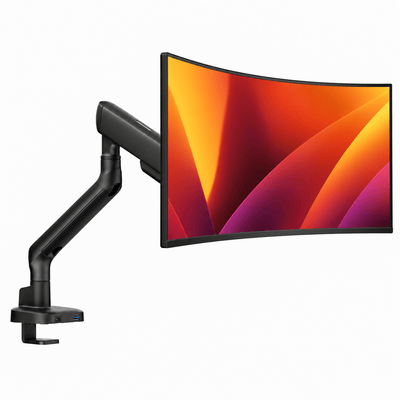
Vertical monitors can occupy more visual height, which makes a fixed stand feel limiting fast. A quality monitor mount gives you the adjustment range to rotate a screen, bring it closer, raise it above desk-level accessories, and reclaim the space beneath it.
That freed surface matters. It creates room for a notebook, keyboard, charging station, or simply a calmer visual field. The difference is not just organizational. A clear desk makes it easier to start work with fewer distractions competing for attention.
Before mounting, confirm the monitor's weight, VESA compatibility, and dimensions. Heavier displays need a mount designed to hold them securely through every position, especially when the screen is rotated into portrait orientation. Check that the monitor will clear the desk, wall, shelves, and any adjacent display as it moves through its full range.
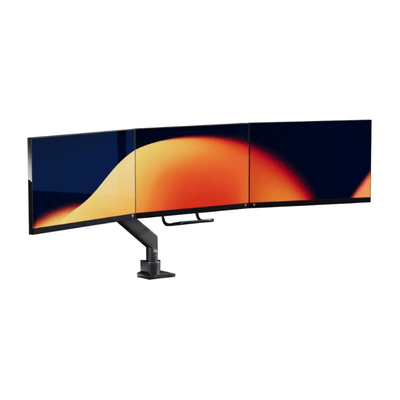
For two screens, a dual monitor mount can create a more unified layout than mixing separate stands. Look for independent adjustment so each monitor can sit at its own ideal height and angle. Perfectly matching positions only matters if your workflow and body position call for it.
Alberenz monitor mounts are built for this kind of control: clean lines, heavy-duty support, and the flexibility to refine your workspace as your day changes.
Keep the Vertical Screen Purposeful
A second monitor should reduce friction, not multiply distractions. Give the vertical display a defined role. It might be your reading screen, communications hub, research column, or live-reference panel.
Try not to fill it with notifications, social feeds, and constantly changing windows if you are trying to protect focus. A vertical monitor is highly effective for information density, which means it can also become an efficient distraction machine. The layout should support the way you want to work, not just display more at once.
Use window snapping and virtual desktops to reinforce that purpose. For example, keep a browser and notes stacked on the vertical display, or dedicate it to a single long document during review sessions. Small software habits make the physical arrangement feel more deliberate.
Design for the Entire Desk, Not Just the Screens
Monitor placement sets the structure of a workspace, but the surrounding details determine whether it feels controlled or cluttered. Center your keyboard with your primary screen, leave enough space for your mouse to move freely, and route cables so they disappear behind the displays rather than cutting across the desktop.
Consider the visual balance of the setup as well. A tall portrait screen can make a desk feel heavier on one side. A monitor arm, low-profile riser, or a simple accessory placement can restore balance without adding unnecessary objects. The goal is not decoration for its own sake. It is a workspace that feels calm, capable, and ready for serious work.
Give the arrangement a few days before deciding it is final. Your body will tell you what a product photo cannot: whether you are twisting, reaching, squinting, or naturally settling into the work. The best vertical monitor setup is the one you stop noticing because it lets you stay focused on what matters.