

The screen can be expensive, sharp, and beautifully designed, yet still make a desk feel wrong. A few inches too low, too close, or too far to one side can turn a focused work session into a day of raised shoulders, a stiff neck, and constant repositioning. This desktop monitor placement guide helps you build a screen position that supports better posture, clearer focus, and a more refined workspace.
Start With Your Natural Working Position
Monitor placement should follow your body, not force your body to adapt to the screen. Begin by setting your chair and desk position before touching the display. Sit back with your feet supported, your lower back comfortably supported, and your elbows relaxed near a 90-degree angle while typing.
Now look forward without lifting your chin or rounding your shoulders. That is the line your main monitor should meet. If you set the screen first and adjust yourself around it, you will often end up leaning forward, reaching for your keyboard, or looking upward all day.
Your keyboard and mouse matter here, too. Keep them close enough that your elbows stay near your sides. A screen can be placed perfectly, but the setup will still feel compromised if your input devices pull you away from a neutral position.
Set the Right Monitor Height
For most people, the top edge of the display should sit at or slightly below eye level. This gives your eyes a natural downward viewing angle toward the center of the screen. It is a small adjustment with a large effect: looking slightly down is usually more comfortable than repeatedly lifting your chin.
There are exceptions. If you wear progressive lenses, a monitor at eye level may require you to tilt your head back to see clearly through the right part of the lens. In that case, lower the display until you can read comfortably with your head neutral. Taller users may also need more adjustment range than a basic stand can provide.
A monitor mount or riser makes this easier because it lets you dial in height without stacking books, boxes, or unstable accessories beneath the screen. It also keeps the desk looking intentional. The goal is not merely to raise the monitor. It is to place it precisely where your posture stays relaxed.
Use the Screen Center as Your Checkpoint
A useful test is to look at the center of your monitor. Your eyes should naturally land a little above it, allowing your gaze to travel gently downward through the content. If you find yourself lifting your chin to read the top of the screen, lower it. If you constantly bend your neck down, raise it.
Do not overcorrect. A dramatic high-mounted screen can look impressive in a desk setup photo but feel fatiguing after a full afternoon of spreadsheets, edits, meetings, or game sessions.
Find a Comfortable Viewing Distance
Most desk setups work well when the monitor sits about an arm's length away, often between 20 and 30 inches from your eyes. The right distance depends on screen size, resolution, text scaling, and how you work.
A larger 32-inch display may need to sit farther back than a 24-inch monitor so you can take in the full screen without excessive eye movement. A high-resolution display can often sit a little closer because text remains crisp, while a lower-resolution screen may feel more comfortable farther away with larger text.
The best signal is your behavior. If you lean forward to read, first increase text size or interface scaling before pulling the monitor too close. If you find yourself turning your head to scan the corners of the display, move it back slightly. Your entire screen should feel available without forcing your eyes and neck to work overtime.
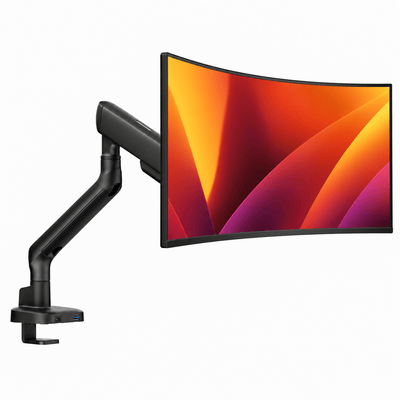
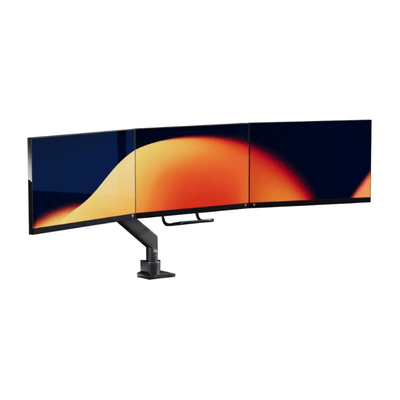
Our monitor mounts

Center Your Primary Screen
Your primary monitor belongs directly in front of you. Not slightly off-center. Not aimed from the corner of the desk. Directly in your natural line of sight.
This matters most when you spend hours in one primary application, whether that is a timeline, design canvas, code editor, financial dashboard, or email. A centered screen reduces repetitive neck rotation and gives the desk a calmer visual balance.
Angle the monitor slightly upward or downward only as needed to reduce glare and maintain a perpendicular relationship to your line of sight. Avoid an aggressive tilt. Excessive upward tilt can reflect ceiling lights, while a steep downward tilt can make the display harder to view comfortably.
Light placement is part of the decision. Position the screen perpendicular to windows when possible rather than directly facing or backing onto one. This helps limit reflections and harsh brightness differences. If daylight shifts throughout the day, a flexible monitor arm gives you the freedom to make small corrections instead of working around glare.
How to Place Two Monitors
Dual-monitor placement depends on which screen carries most of the work. The common mistake is centering the gap between two monitors in front of your chair. That arrangement looks symmetrical, but it can leave you spending the day looking slightly left and right rather than straight ahead.
If one monitor is clearly your primary display, center that screen in front of you and place the secondary screen beside it at a slight inward angle. Keep both displays close together so your eyes can move between them without a wide head turn. Match their height as closely as possible, especially if you regularly drag windows across both screens.
If you use both screens equally, place the center point between them in front of you and angle them inward in a shallow V shape. This is a strong choice for roles that require constant reference work, such as editing, trading, development, operations, or research.
For stacked monitors, keep the primary display on the bottom. The upper display should hold reference material, chat, music controls, or content you check periodically. Looking upward for short moments is fine. Looking up for your main task all day is not.
Place a Laptop Without Compromising Posture
A laptop works best as a secondary screen when paired with an external monitor. Place it to the side of your primary display, angled inward, and raise it with a laptop mount or stand so its top edge is closer to your external monitor's height. Use an external keyboard and mouse to avoid reaching forward or bending your wrists around the laptop.
If the laptop is your only display, raise it until the screen is near eye level and use separate input devices. This is one of the cleanest upgrades for remote work because it improves viewing height while freeing usable desk space below.
There is a trade-off: a raised laptop can make the built-in keyboard impractical. That is why the external keyboard is not an extra. It completes the ergonomic arrangement.
Create Space for Movement and Focus
The best monitor position is not fixed forever. Your body shifts, tasks change, sunlight moves, and the desk needs to work for more than one kind of day. A rigid setup can look clean but still feel limiting when you switch from focused production to video calls, collaborative reviews, or a long gaming session.
Choose hardware with enough range to adapt. A quality mount lets you bring the screen closer for detailed work, push it back when you need more desk depth, rotate it for portrait layouts, or reclaim surface space when the desk needs to serve another purpose. Alberenz monitor mounts are designed for this balance of heavy-duty support, clean cable management, and elevated workspace control.
Keep cables routed behind the display and leave enough slack for adjustment. A monitor arm that cannot move because cables are pulled tight defeats the purpose. A clear desk surface also reduces visual noise, making it easier to settle into work without feeling surrounded by equipment.
A Quick Placement Check Before You Start Work
Before committing to a new arrangement, spend 15 minutes doing your normal tasks. Read small text, type, join a call, move between windows, and notice what your body does when you stop thinking about posture.
If your shoulders rise, your screen may be too high or your desk setup may be forcing a reach. If your head moves forward, the monitor may be too far away or text may be too small. If you repeatedly turn to one side, recenter the primary screen or reconsider which display is truly primary.
A great desk setup should feel almost invisible. When the screen is at the right height, distance, and angle, you stop managing your workstation and start using it.



