

An ultrawide display changes the way a desk works. It gives you room to create, compare, edit, and focus without a wall of separate screens. But that wider canvas also creates a bigger mounting challenge. The best monitor arm for ultrawide monitors needs more than a clean silhouette. It needs the capacity, reach, and control to keep a large display stable at the right height all day.
A basic monitor stand can leave a premium display sitting too low, too far away, and surrounded by wasted desk space. A well-matched arm gives the screen a floating, intentional presence while helping you build a more comfortable viewing position. The difference is immediate: more usable surface area, a clearer sightline, and a setup that looks as considered as it performs.
What Makes an Ultrawide Monitor Arm Different?
Ultrawide monitors are not simply wider standard displays. Their weight, screen curvature, and wide center of gravity place different demands on a mounting system. A 34-inch ultrawide may be easy for many quality arms to support, while a heavier 49-inch super ultrawide can exceed the real-world range of mounts that look similar on paper.
Weight capacity matters, but it is only the beginning. The arm must also hold the display at a stable viewing distance without sagging, drifting, or requiring constant adjustment. With a wide screen, even slight movement is more noticeable. If the monitor tilts forward over time or bounces when you type, the workspace quickly feels less refined.
The VESA mounting pattern is another non-negotiable. Most ultrawides use 75 x 75 mm or 100 x 100 mm VESA patterns, but verify your monitor before choosing an arm. If your display requires an adapter, include that adapter's added depth and weight in your decision.
Best Monitor Arm for Ultrawide Monitors: Start With Capacity
The right capacity is based on the monitor's actual weight without its factory stand, not its diagonal size alone. Manufacturers often list both figures, and the distinction is easy to miss. Remove the stand weight from the equation, then compare the remaining number to the arm's supported range.
Avoid selecting an arm whose maximum capacity exactly matches your monitor's weight. A small margin gives the mechanism room to operate properly and accounts for accessories such as a webcam, light bar, or VESA adapter. For a heavy ultrawide, choose an arm that is clearly rated above the display rather than hoping a lower-rated model will hold position.
This is especially relevant for curved 38-inch, 40-inch, and 49-inch monitors. Their dimensions can increase leverage on the arm, even when the listed weight appears acceptable. A premium heavy-duty arm is designed to manage that force with a stronger internal mechanism, firmer joints, and a base that keeps the entire installation composed.
Do not treat capacity as a marketing detail. It determines whether your monitor remains precisely where you place it or slowly turns every work session into an adjustment ritual.
Check the Height Range Before You Buy
An arm should raise your screen enough to place the top portion of the display near eye level when you sit upright. Since ultrawides are often shorter than conventional monitors of the same visual impact, users sometimes need more lift than expected. This becomes even more relevant on deep desks, where the screen may sit farther from the edge.
Measure from your desktop to the preferred center of your screen, then compare that requirement with the arm's stated height range. Consider the height of the VESA plate relative to the monitor itself. An arm can have generous lift but still fall short if the mounting plate sits close to the center and your display needs a higher final position.
Prioritize Reach, Tilt, and Screen Position
A quality monitor arm should let you pull the display forward for focused work and push it back when you need more open desk space. For ultrawide users, horizontal reach is often as valuable as vertical lift. The ideal screen distance depends on monitor size, resolution, eyesight, and desk depth, but the arm should give you flexibility rather than lock you into one position.
Tilt adjustment matters because ultrawides can reveal poor viewing angles across their full width. A slight downward tilt can reduce glare and help align the screen with your natural line of sight. The mechanism should hold that tilt securely, particularly with curved displays that place more visual emphasis on the screen's edges.
Rotation is less essential for most ultrawide setups. Portrait mode rarely makes sense on a 34-inch or 49-inch display. Still, rotational adjustment can be useful during installation, allowing you to level the monitor with precision. The goal is not maximum movement for its own sake. It is controlled movement that serves your workspace.
Nos bras de moniteur

Match the Arm to Your Desk, Not Just Your Display
Even the best monitor arm can underperform on the wrong desk surface. Before installing, check your desktop thickness, material, edge profile, and any structural supports underneath. Clamp mounts are popular because they are fast to install and preserve the desktop, but they require a clear edge with enough surface area for the clamp to grip securely.
A grommet mount can be a cleaner choice for desks with a cable hole or a planned mounting point. It anchors through the desk and can provide a particularly planted feel for larger ultrawides. The trade-off is permanence: installation takes more effort, and you need to be comfortable creating or using a hole in the desktop.
Glass desks, hollow-core tops, and thin particleboard deserve extra caution. A heavy monitor concentrates force at the mounting point. A reinforcement plate can help distribute pressure, but it cannot turn an unsuitable desk into a heavy-duty workstation. Build from a stable foundation.
Cable Management Is Part of the Performance
An ultrawide monitor often means more cables: power, video, USB, charging, speakers, and accessories. Choose an arm with integrated cable channels that keep wires close to the arm's structure as it moves. This protects cables from pulling taut and preserves the clean, open look that makes a mounted display feel elevated.
Leave a little slack at the monitor and desk connection points. Test the arm through its full range before securing the cable covers. A cable route that looks perfect when the monitor is centered can become a problem when the screen is pulled forward.
Choose the Right Arm Type for Your Workflow
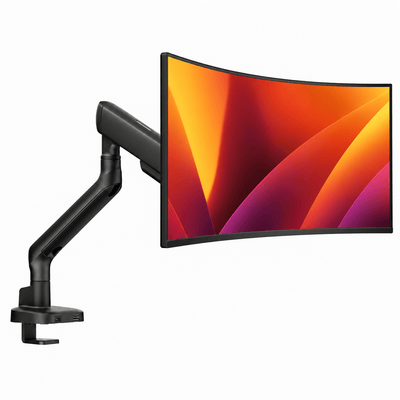
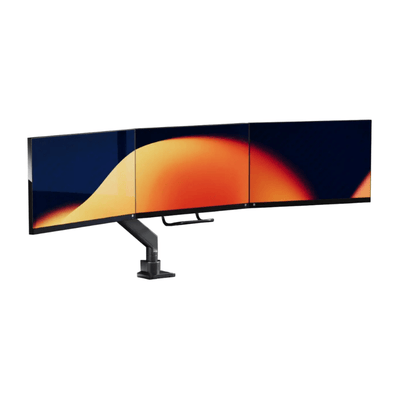
A single heavy-duty arm is the natural choice for most ultrawide users. It keeps the display centered, releases valuable desk space, and gives you the freedom to fine-tune your posture. For a creative workstation, it can also create room beneath the screen for a notebook, keyboard, tablet, or charging accessories.
If you use an ultrawide alongside a laptop or secondary display, do not assume every dual-monitor arm is built for the combination. The ultrawide side needs its own adequate capacity and reach, while the second screen should not interfere with the ultrawide's movement. A dedicated laptop-monitor mount or a purpose-built mixed-display solution may create a cleaner result.
For gaming, prioritize stability and clearance. You may want the monitor closer during immersive play and farther back for everyday tasks. For design, finance, development, and editing work, prioritize precise positioning and a range that supports long hours of focused viewing. The right choice depends on how you use the screen, not just how dramatic it looks on the desk.
A Smarter Way to Compare Monitor Arms
Start with your monitor model and find its weight without the stand, VESA pattern, and curvature. Then measure your desk thickness, available rear clearance, and preferred screen height. These details narrow the field far more effectively than browsing by screen size alone.
Next, look for an arm with headroom in its weight rating, a range of motion that suits your desk depth, and a mounting system compatible with your desktop. Finish with the details that shape everyday satisfaction: polished cable management, durable finishes, easy tension adjustment, and warranty coverage that supports a long-term investment.
A premium workspace should not rely on compromises hidden behind the screen. Alberenz designs desk hardware around the idea that strength, ergonomics, and visual order belong in the same setup.
The best arm is the one you stop noticing because it holds your ultrawide exactly where work feels natural. Set the screen with intention, clear the surface below it, and give your desk the space to support your best work.