

A two-monitor desk can either feel like a focused command center or a crowded collection of screens fighting for space. The difference often comes down to the mount. When weighing a dual monitor arm vs two single arms, the right choice is less about having two displays and more about how you work, how often your setup changes, and how polished you want the desk to feel.
A dual arm creates one coordinated system. Two single arms create a modular one. Both can lift screens to a more natural viewing height, clear valuable space below, and replace the visual clutter of factory monitor stands. But their strengths show up in different kinds of workspaces.
Dual Monitor Arm vs Two Single Arms: The Core Difference
A dual monitor arm is a single mounting system designed to support two displays from one desk clamp, grommet mount, or central post. The screens share a common base, and their arms extend outward from the same point. It is a composed, intentional solution for side-by-side monitors that stay in a familiar arrangement.
Two single arms are exactly what they sound like: two independent monitor mounts, each with its own base and adjustment points. They can sit close together, spread across a wide desk, or occupy different areas entirely. That independence gives you more freedom, but it also introduces another clamp, another set of cables, and more visual hardware along the desk edge.
The choice is not simply fixed versus flexible. A premium dual mount still offers meaningful height, tilt, swivel, rotation, and reach adjustments. Likewise, a pair of single arms can look exceptionally clean when they are positioned with care. The question is whether your monitors behave as a pair or operate as separate tools.
Choose a dual arm for a unified workstation
A dual monitor arm is usually the stronger fit for professionals, gamers, analysts, and creators using two similar-size displays in a permanent side-by-side layout. It keeps the screens visually connected and makes centering the setup easier. If one monitor is your primary screen and the other holds messages, reference material, a timeline, or a browser, the shared base reinforces that simple workflow.
It also makes a smaller desk feel calmer. One mounting point means less hardware at the back edge and fewer components competing with your keyboard, dock, speakers, and accessories. For a refined desk setup, that reduction matters. The mount becomes part of the architecture of the workspace instead of another piece of equipment to work around.
A dual arm can also simplify installation. You assemble one central system, route two sets of cables through a coordinated path, and align both displays from the same starting point. For anyone upgrading from stock stands, that is a fast route to a more open desk.
Choose two single arms for independent control
Two single monitor arms earn their place when each screen needs a different position. Perhaps your main display sits directly in front of you while a second screen stays farther to the side. Perhaps you regularly turn one monitor vertical for code, writing, research, or chat. Or perhaps you shift one screen forward for detailed creative work and push it back when it is not needed.
Independent arms also make more sense for monitors with different sizes, weights, or styles. A 34-inch ultrawide paired with a 24-inch vertical monitor has different balance and reach requirements than two matching 27-inch displays. Separate arms let you choose placement around each display rather than asking one dual system to accommodate an uneven pairing.
They are also better for changing desk layouts. If you occasionally work with a laptop, use a drawing tablet, share a screen with someone beside you, or move between focused work and gaming, two arms can adapt without requiring your entire monitor arrangement to move together.
Stability, Reach, and Weight Capacity
A monitor mount should feel quiet and controlled. Screens should hold position without sagging, bouncing, or requiring a reset every time you touch the desk. This is where specifications matter more than a product photo.
With a dual monitor arm, check the weight capacity for each arm, not just the total capacity of the unit. A mount rated for two displays may still have a per-arm limit that your monitors exceed once their stands are removed. The monitor’s listed weight should include only the panel, but consider the real-world load if you add a light bar, webcam, or other accessory.
With two single arms, evaluate each mount independently. That can be an advantage for mixed displays because you can select an arm suited to each screen. It also allows wider spacing between the monitor bases, which can improve stability on a large desk. The trade-off is that the desk itself must support two clamp locations or two grommet installations.
Screen depth matters, too. A heavier monitor may be within an arm’s weight range but still demand more tension and a sturdier joint structure because its center of gravity sits farther from the arm. This is especially relevant for curved displays and ultrawides. Choose a heavy-duty mount designed for the load rather than forcing a lighter arm to do a job it was never built to handle.
Desk Space and Visual Impact
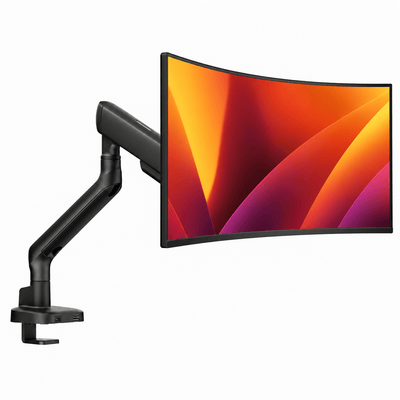
The clearest advantage of any monitor arm is the space it returns to your desk. Raising displays removes the bulky footprint of factory stands and opens room for a keyboard, notebook, charging station, or simply a cleaner surface.
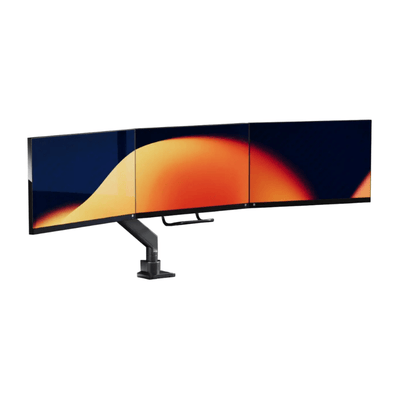
A dual monitor arm usually wins on visual restraint. One clamp and a centralized cable route create a more minimal profile, particularly when the displays are the same model and sit at the same height. The result feels deliberate from every angle, including the view behind the desk.
Two single arms can occupy more of the rear desk edge, especially if their clamps need space between them. They may also create a more technical look, with two arm bases visible rather than one. That does not have to be a drawback. On a wide desktop, the symmetry of two matching arms can look balanced and high-performance. It simply requires more attention to alignment and cable routing.
Consider your wall clearance before choosing either option. Some arms extend behind the desk when pushed inward or swung to the side. A central dual system may need room for both arms to articulate, while individual arms may give you more options for working around shelving, walls, or a desk placed in a corner.
Nos bras de moniteur

Ergonomics Depends on Placement, Not Just the Mount
The best monitor arm does not automatically create an ergonomic setup. It gives you the control to build one.
Start with your primary display. Place it directly in front of your seated position, with the top of the screen at or slightly below eye level for most users. Keep it roughly an arm’s length away, then adjust based on screen size, text scaling, and visual comfort. Your secondary monitor should sit close enough that you can glance at it without repeatedly twisting your neck.
For evenly used dual screens, angle both panels inward slightly to create a gentle curve around your natural sightline. If one display is used only occasionally, position it farther off-center rather than making your body compromise around it. A dual arm handles the first arrangement beautifully. Two single arms are often better for the second.
Portrait orientation can be valuable for reading long documents, writing code, reviewing vertical content, or managing chat. Before committing, confirm that the mount supports rotation and that your monitor has the required VESA mounting pattern. Rotation is common, but the available clearance varies. A large display may hit the desk or adjacent screen before it can turn comfortably.
Installation Details That Shape the Decision
A premium setup starts with a compatible desk. Measure the desktop thickness, inspect the underside for support beams or drawers, and decide whether a clamp mount or grommet mount makes the most sense. A clamp is straightforward and easy to reposition. A grommet mount can look more integrated, especially on a desk with a cable-management opening.
Check the available rear-edge space as well. Some desks have a raised lip, a modesty panel, or structural framing that prevents a clamp from sitting flush. On sit-stand desks, make sure the monitor arms and screens remain within the desk’s total lifting capacity.
Cable management is another practical separator. A dual arm can make two monitors look nearly wireless from the front because both cables follow one coordinated route. With separate arms, take an extra few minutes to set cable slack at every movement point. The screens should be able to raise, lower, rotate, and swing without pulling on a cable or leaving a loose loop in view.
Which Setup Fits Your Work?
Choose a dual monitor arm if your priority is a clean, centered pair of matching monitors. It is the natural choice for a permanent dual-screen workstation where visual cohesion, quick installation, and reclaimed desk space are high on the list. It delivers a disciplined, design-forward foundation without sacrificing the adjustments most people use every day.
Choose two single arms if your monitors serve different roles or your desk changes with the task. They are especially compelling for mixed monitor sizes, portrait-and-landscape combinations, wide desks, shared work surfaces, and workflows where one display needs to move independently from the other.
For many elevated home offices, the answer comes down to intention. A dual mount makes two screens feel like one system. Two single arms let each screen earn its own position. Alberenz designs workspace hardware around that same principle: the setup should support the way you work while bringing order and presence to the desk.
Before you choose, sit at your desk and picture a demanding workday, not a product photo. Notice where your eyes go, where your hands need room, and whether your screens truly move together. The right mount is the one that makes those choices feel effortless long after the desk is finally organized.