

Your neck should not be the part of your body doing the most work at your desk. Yet a low monitor, crowded keyboard tray, or laptop placed flat on the surface can quietly turn a focused morning into an afternoon of shifting, stretching, and losing your train of thought. Office ergonomics is the discipline of designing your workspace around how your body actually works, so comfort and performance can hold up through the day.
This is not about building a desk that looks clinical. A well-designed setup can be clean, minimal, and highly personal. The goal is simple: create a workspace that supports neutral posture, keeps essential tools within easy reach, and gives you room to move.
Office Ergonomics Starts With Screen Position
Your screen has an outsized effect on your posture because your eyes will always find it. If the display is too low, you bend your neck forward. If it is too high, your chin tips upward. If it sits off to one side, your shoulders and neck compensate, often without you noticing until the day is nearly over.
For most people, the top third of the display should sit at or slightly below eye level. Place the monitor roughly an arm's length away, then adjust based on screen size, text size, and vision needs. Larger displays may need to sit a little farther back. If you find yourself leaning in to read, increase text scaling before pulling the screen closer.
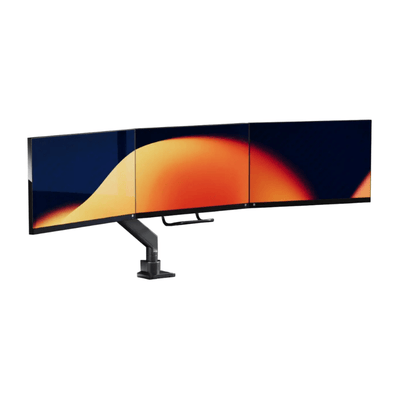
Center your primary monitor directly in front of you. With a dual-monitor setup, the right placement depends on how you work. If both screens get equal use, position the seam between them at your centerline and angle each display slightly inward. If one screen is clearly primary, keep it centered and place the secondary screen beside it. That small decision reduces repetitive twisting over hundreds of workdays.
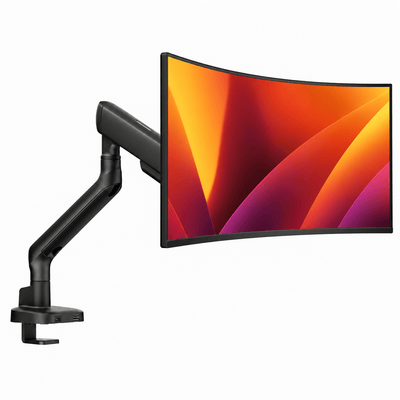
A monitor mount makes these adjustments practical instead of theoretical. It lets you raise the display off the desk, bring it closer or farther away, and reclaim the surface beneath it. For heavier ultrawide screens or dual-display workstations, stability matters as much as range of motion. A premium mount should hold its position without wobble, drift, or visual clutter.
Make the Desk Fit Your Body, Not the Other Way Around
Desk height determines what happens at your shoulders, elbows, and wrists. When seated, your shoulders should feel relaxed, with elbows close to your sides and bent at about 90 degrees. Your forearms should rest comfortably near parallel with the floor while typing or using a mouse.
If your desk is too high, you may lift your shoulders to reach the keyboard. If it is too low, you may round forward or place excess pressure on your wrists. Adjustable desks solve this directly, but a fixed-height desk can still work well with the right chair adjustment, keyboard tray, or footrest.
Your keyboard and mouse belong in the same work zone. Keep them close enough that your elbows stay near your body instead of reaching forward. The mouse should not sit higher or farther away than the keyboard. A beautiful desk setup loses its value if your dominant arm spends eight hours stretched toward the edge of the surface.
Avoid resting your wrists on hard edges while typing. Support your palms lightly when pausing, not your wrists while actively moving. The distinction matters because wrist position should stay as neutral as possible when you type, click, and scroll.
The Chair Is a Foundation, Not an Afterthought
A good chair does more than provide cushioning. It gives you a stable base from which the rest of your setup can work. Start by setting the chair height so your feet rest flat on the floor. Your knees should be near hip level or slightly lower, without the seat pressing into the backs of your thighs.
Use the backrest. Lumbar support should meet the natural curve of your lower back rather than pushing aggressively into it. Reclining slightly can reduce pressure on the spine for many people, but there is no universal angle that fits everyone. The right position is the one that lets you stay supported without sliding forward or straining to see the screen.
Armrests can help, but only when they fit beneath the desk and support your arms without raising your shoulders. If they force you to hunch or prevent you from getting close enough to the keyboard, lower them or move them out of the way. Ergonomics is not about using every feature. It is about keeping the features that improve your working position.
Unsere Monitorhalterungen

Build a Laptop Setup That Holds Up
A laptop is designed for portability, not all-day desk work. Its screen and keyboard are connected, which creates an unavoidable trade-off: place the screen at eye level and the keyboard becomes too high, or place the keyboard at elbow height and the screen becomes too low.
For extended work, separate those two tasks. Raise the laptop with a dedicated laptop mount or stand, then use an external keyboard and mouse. This allows your screen to meet your eyes while your hands stay in a natural typing position. It also creates a more intentional desk profile, especially when paired with a monitor in a compact hybrid setup.
If you work between home and office, prioritize adjustability and speed. A setup does not need to be permanently fixed to be ergonomic. A laptop stand, compact keyboard, and reliable mouse can transform a temporary desk in minutes. The key is consistency: do not let a short work session become a full day spent looking down at a screen.
Office Ergonomics Also Means Designing for Movement
Even the best sitting posture is not meant to be held for hours. Your body benefits from variation. Stand for a call, refill your water, walk while reviewing a voice note, or simply reset your position between tasks. Small movement breaks are often more realistic and more effective than waiting for one perfect workout after work.
Think of your setup as a system that should make movement easier. Keep frequently used items close, but place less essential tools far enough away that you have a reason to stand. Use a sit-stand desk if it supports your workflow, not because standing all day is inherently better. Long periods of standing can create their own discomfort. Alternating positions is usually the stronger approach.
A clear desk also helps. When cables, chargers, notebooks, and accessories consume the workspace, you have fewer options to reposition yourself. Mounting your display and organizing the tools beneath it creates visual calm, but it also creates functional space to write, sketch, review documents, or simply rest your forearms without obstruction.
Fix the Highest-Impact Problems First
You do not need to replace every piece of office furniture at once. Start with the element causing the most obvious strain. For many people, that is screen height. For others, it is a chair that cannot be adjusted correctly or a mouse positioned too far away.
Make one change, use it for several days, and notice what shifts. A monitor riser may be enough for a single display, while a fully adjustable monitor mount gives more flexibility if you share a desk, switch between seated and standing work, or use multiple screens. A compact desk might benefit most from lifting equipment off the surface. A larger workstation may need better zoning and cable control.
The best setup is not the one with the most accessories. It is the one that makes good posture feel natural, keeps your tools ready, and still looks like a space you want to sit down at. Alberenz approaches workspace hardware with that balance in mind: serious support, refined lines, and a desk that feels built for better work.
Your workday has enough friction already. Set your screen where your eyes expect it, place your tools where your hands can reach them, and give your body permission to change position. The result is not just a more comfortable desk. It is a workspace that stays ready when your best work begins.



