

A bright window, a glossy screen, and one poorly placed lamp can turn a refined desk setup into a daily distraction. Knowing how to reduce screen glare is not just about seeing your display more clearly. It is about building a workspace that supports longer periods of focused, comfortable work without forcing your eyes to fight the room.
Glare is often treated as a screen problem. More often, it is a positioning problem. The good news is that a few intentional changes to your monitor height, angle, lighting, and desk layout can make a dramatic difference.
Why Screen Glare Happens
Screen glare occurs when a bright light source reflects off your display and competes with the content you are trying to see. Daylight from a window is a common culprit, but overhead lighting, desk lamps, light-colored walls, and even a bright shirt can contribute to reflections on a glossy panel.
There are two types to notice. Reflected glare is the visible image of a window, lamp, or light fixture on the screen. Contrast glare is less obvious: your display may not show a clear reflection, but the area around it is so bright that your eyes work harder to read text and distinguish details.
Both can lead to squinting, headaches, visual fatigue, and the subtle habit of leaning forward. That last response matters. When your screen becomes difficult to see, posture usually follows. You may lower your chin, twist your shoulders, or move closer to the display, compromising an otherwise ergonomic setup.
How to Reduce Screen Glare With Better Monitor Placement
Before buying an accessory or changing a single display setting, assess where your monitor sits in relation to the room. Placement produces the biggest improvement because it addresses the source of the problem.
Position the screen perpendicular to windows
The ideal position is typically perpendicular to a window, rather than directly in front of it or with it directly behind you. When the window is behind your monitor, the bright background makes the screen feel dim by comparison. When the window is behind you, its reflection often appears on the display.
A side-facing window gives you the best starting point. You still get natural light in the workspace, but you reduce direct reflections and extreme contrast. If your desk cannot move, rotate the monitor slightly or shift your seating position until the brightest reflection leaves the display.
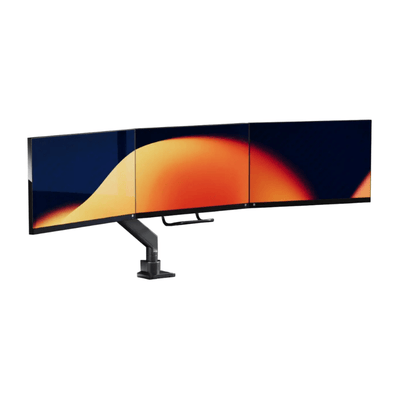
This is where a monitor mount earns its place. A stable, adjustable arm lets you fine-tune the screen position without reorganizing the entire desk. A few inches of movement or a small rotation can be more effective than turning your brightness to maximum.
Set a comfortable height and tilt
Your eye line should generally meet the top third of the screen, with the display tilted slightly upward or downward as needed to avoid reflections. The exact angle depends on your monitor, seating height, and light sources. There is no universal degree setting that works for every desk.
Start with the screen centered in front of you and roughly an arm's length away. Then tilt it in small increments while viewing a white document or a blank browser window. Reflections are often easier to spot against a light background. Stop when the screen is clear and your neck stays neutral.
Avoid compensating for glare by placing the monitor too low or too far away. A clear screen is not an upgrade if it causes you to bend your neck for eight hours.
Keep bright objects out of the screen's reflection path
Look beyond windows. A polished desk lamp, a bright overhead fixture, a glass tabletop, or even a white wall behind you can bounce light toward the display. If a reflection remains after repositioning the monitor, turn off nearby lights one at a time. This simple test reveals the source quickly.
For a dual-monitor setup, check each panel separately. One display may be perfectly readable while the second catches a reflection at a different angle. Independent adjustability is especially valuable here, since matching monitor heights does not always mean matching monitor angles.
Build Lighting That Works With Your Screen
A high-performance workspace needs balanced lighting, not darkness. Closing every blind and working under one harsh ceiling light may remove a reflection, but it creates another problem: a dramatic contrast between the bright monitor and the dim room.
Aim for soft, even ambient light around the desk. Diffused natural light is excellent when you can control it with blinds, curtains, or shades. If daylight changes throughout the day, adjustable window coverings give you more consistent conditions than a fixed desk position alone.
At night, avoid relying on an overhead light directly above or behind your screen. A lamp with a shade, placed off to the side, can illuminate the desk surface without shining into your eyes or reflecting in the display. The goal is to light your workspace, not the face of your monitor.
Bias lighting can also help in darker rooms. This is a soft light placed behind the monitor that brightens the wall immediately around it. It does not eliminate reflections, but it can reduce the visual strain caused by a very bright screen against a dark background. Keep it subtle and neutral rather than intensely colored.
Naše držáky na monitor


Tune the Display Before You Buy Anything
Once the screen and room are positioned well, adjust the display itself. Many people run monitors at full brightness by default, even when the panel is much brighter than the surrounding environment. That can make text feel harsh and cause more fatigue over a long workday.
Set brightness to a level that feels comparable to the room, then adjust contrast only if text or details appear washed out. If your monitor includes an ambient light sensor, test it for a few days. Automatic brightness can be useful near changing daylight, though some people prefer manual control for consistent color work.
For designers, photographers, and video editors, color accuracy should take priority over aggressive blue-light filtering or heavily tinted display modes. A warmer setting may feel more comfortable in the evening, but it can alter color judgment. Use it when reading, writing, and administrative work fill the day. Switch back to a calibrated mode when color-critical work begins.
Dark mode can reduce perceived brightness in low-light settings, but it is not a universal glare solution. White text on a dark background may feel less comfortable for some users, particularly when reading long documents. Test it based on the task, not the trend.
Choose the Right Surface and Screen Protection
A matte monitor surface diffuses reflections more effectively than a glossy one. If you are choosing a new display for a bright office or window-facing home workspace, this is worth considering before focusing on specifications alone. Glossy screens can deliver rich contrast and a more vivid appearance, but they demand better light control.
Anti-glare screen protectors can be useful when replacing the monitor is not practical. They reduce sharp reflections by adding a matte layer over the display. The trade-off is image clarity. Depending on the protector and screen resolution, you may notice a slight softness or grain, especially in detailed creative work.
For general productivity, the compromise can be worthwhile. For photo editing, design, or premium visual media, solve placement and lighting first. A clear display with a well-controlled environment usually looks better than a heavily diffused display in a poorly arranged room.
Refine the Desk Around the Screen
Screen glare is easier to manage when your desk has room to move. A crowded surface forces the monitor into whatever position is available, rather than the position that works best for your eyes. Freeing desk space can create the flexibility to shift a screen away from a window, lower a lamp, or adjust the monitor angle without disrupting your workflow.
A monitor mount, laptop mount, or monitor riser can make those adjustments feel intentional rather than temporary. The right hardware keeps the display stable at the position you choose, while creating a cleaner visual line across the desk. Alberenz designs its workspace hardware around that balance: serious support, precise adjustment, and a more considered setup.
Do not overlook the laptop. If you use a laptop as a primary screen, its low position often encourages you to tilt the display toward a window or overhead light, increasing reflections and poor posture at the same time. Raise the laptop, pair it with an external keyboard and mouse, and treat its placement with the same care as a desktop monitor.
When Glare May Not Be the Only Issue
If you have adjusted the room, monitor, and settings but still experience frequent headaches or eye strain, glare may be only part of the picture. Dry eyes, an outdated prescription, prolonged close-up work, and insufficient breaks can all create similar symptoms.
Use the 20-20-20 approach as a practical reset: every 20 minutes, look at something about 20 feet away for around 20 seconds. Blink intentionally when working through dense tasks. If discomfort persists or vision changes, an eye care professional can help identify whether your workspace is amplifying an issue that needs a different solution.
The best desk setups do not ask you to adapt to them. They give you control over light, height, position, and focus, so the work in front of you stays exactly where it belongs: on the screen, not in the glare.