

A monitor arm can transform a desk in minutes, but only if the foundation is right. Desk clamp compatibility is the detail that determines whether your setup feels secure, refined, and built to last or unstable from the first adjustment. Before choosing a monitor mount, look closely at the desk it will live on.
A premium workspace is not just about what sits on top of the desk. It is about how every component works together underneath it, around it, and through the full range of motion you expect from your screen.
Why Desk Clamp Compatibility Comes First
Desk-mounted monitor arms use a clamp to grip the edge of your desktop. This creates a strong installation without drilling holes, keeps the surface clean, and makes it easier to reposition your setup later. But a clamp is only as reliable as the desk edge it grips.
The most common mistake is focusing only on monitor size and arm weight capacity. Those specifications matter, but they do not answer whether the clamp can sit flat, tighten fully, and distribute pressure safely across your particular desktop. A heavy-duty mount on an unsuitable surface can leave you with wobble, surface damage, or a placement that limits how the arm moves.
Check compatibility before your mount arrives. It is the fastest route to a more confident installation and a desk that still looks considered after years of use.
The Measurements That Matter
You do not need a complicated toolkit. A tape measure, a clear view of the underside of your desk, and a few minutes of attention are usually enough.
Desktop thickness
Start with the thickness of the desktop at the intended clamp location. Every monitor mount has a supported thickness range, so compare your measurement with the product specification rather than estimating by sight.
A desktop that is too thin can flex under the combined load of the arm and monitor. A desktop that is too thick may prevent the clamp screw from reaching far enough to secure the mount. The goal is a firm, even grip that does not require excessive tightening.
Thickness can vary across a desk, especially on tops with a beveled edge, decorative trim, or a reinforced rear section. Measure the actual point where the clamp plate will make contact, not the middle of the desk.
Edge depth and clearance
A clamp needs a usable portion of desktop to grip. That means enough flat material on top for the mount base and enough unobstructed space below for the lower clamp plate and screw.
Look underneath the desk for support beams, crossbars, drawers, cable trays, privacy panels, or a thick rear apron. Any of these can block the clamp or force it into an awkward position. A desk may have a generous-looking back edge yet offer very little practical clearance underneath.
If your desk has a raised rear lip, an angled edge, or a pronounced bevel, the upper mounting plate may not sit flush. A flat, stable contact point is essential. Do not try to solve a poor fit by overtightening the clamp.
Distance from the wall
Monitor arms are designed to move, which means they need room behind and beside the desk. If the desk sits directly against a wall, consider the arm's rearward movement when extending, retracting, swiveling, or rotating the display.
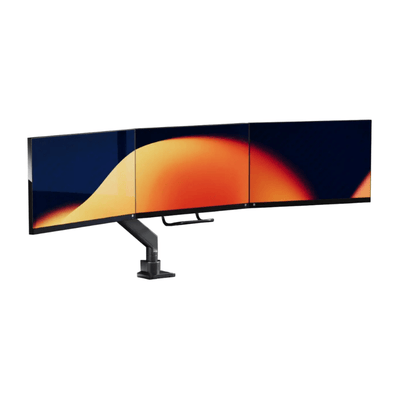
This is particularly relevant for dual monitor mounts. Two screens can require a wider range of movement to align correctly, and an arm placed too close to a wall may not deliver the positioning freedom you bought it for. A small gap behind the desk can make cable routing cleaner and adjustment far easier.
Know What Your Desktop Is Made Of
Material affects both strength and finish protection. Solid wood, quality plywood, and well-built laminate desks are commonly good candidates for clamp-mounted hardware, provided the thickness and underside clearance are suitable.
Particleboard and hollow-core desks need more scrutiny. Their outer surface can look polished while the interior offers limited resistance to concentrated clamp pressure. A heavy monitor arm can compress the material over time, especially when paired with a large display or frequent arm adjustments.
Glass desks require a product explicitly designed and approved for glass use. Standard clamp mounting can place concentrated pressure on a surface that is not intended for it. When there is any uncertainty, choose another installation method or use a desk designed for the load.
Desks with stone, marble, or delicate veneer surfaces also deserve caution. The issue is not only structural strength. It is also preventing marks, chips, or pressure damage to a premium finish. Protective pads can help preserve a surface, but they do not make an incompatible desk suitable for a clamp.
Naše držáky na monitor
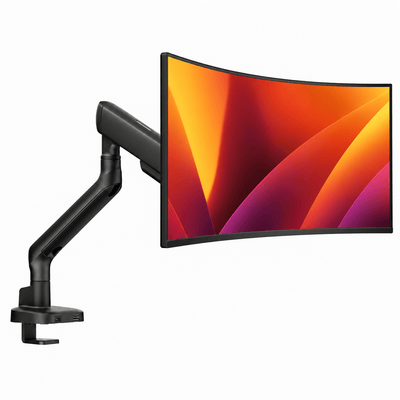

Match the Mount to the Real Load
The listed capacity of a monitor arm should exceed the total weight of the display it will carry. Include the monitor itself and any attached accessories, such as a webcam, light bar, or adapter. Do not rely on screen size alone. Two 32-inch monitors can differ dramatically in weight.
For a laptop-monitor setup, calculate each side independently if the mount has separate arms. A laptop tray, charging cable, and laptop can create a meaningful load, particularly when the tray is extended away from the desk.
The way you use the arm matters too. A screen that stays close to the base places less leverage on the clamp than one that is frequently pulled forward, lifted, and rotated. This does not mean you should avoid full motion. It means the desktop, clamp, and mount capacity should be selected as one system.
A well-matched mount feels controlled when you move it. It should hold position without drifting, sagging, or making the desk edge flex visibly.
Desk Clamp Compatibility for Common Desk Styles
A classic rectangular desk with a flat back edge is often the simplest case. Measure thickness, confirm clear space below, and choose your preferred mounting position. Center placement works well for a single monitor, while a slightly offset placement can create better balance for a laptop and monitor pairing.
Standing desks can be excellent for monitor arms, but inspect the underside carefully. Many include a metal frame set close to the rear edge. Mounting in front of the frame may work, but it can change screen reach and cable routing. Also consider how your cables move when the desk transitions from sitting to standing.
Desks with drawers or storage units often limit where a clamp can go. In these cases, a side placement, a narrow gap between supports, or a grommet-style installation may be more practical. The best location is not always the visual center. It is the point that provides a secure grip and lets the display sit in your natural line of sight.
Corner desks introduce another variable: shape. The inside corner can be ideal for a dual monitor mount if it provides a flat, supported mounting section. Curved edges and angled joints may reduce the usable clamp area, so measure both the top surface and the space below.
Install for Stability and Surface Protection
Once you have confirmed fit, clean the desk edge before installation. Dust and grit can create uneven pressure or leave marks under the clamp pads. Position the mount base on a flat section of the desk, then tighten the clamp until it is secure and stable.
Firm does not mean forced. If the clamp requires extreme pressure to stop movement, pause and inspect the fit. The issue may be a blocked underside, an uneven edge, or a desktop material that is flexing. A properly compatible clamp should feel solid without turning installation into a test of strength.
After mounting, test the arm gradually. Move the display through its normal range, then check the clamp, desktop edge, and screen position. Recheck after a few days of use, especially if you have adjusted tension or changed the weight on the arm.
Cable management deserves attention here as well. Route cables with enough slack for full arm movement, but not so much that they pull, snag, or clutter the rear of the desk. Clean cable routing protects the adjustment experience and preserves the visual calm that makes a workspace feel finished.
When a Clamp Is Not the Right Choice
A desk clamp is a smart solution for many setups, but it is not universal. If your desktop is fragile, too thin, obstructed underneath, unusually shaped, or unable to provide a flat mounting area, forcing a clamp installation is not worth the risk.
A grommet mount can be a strong alternative when the desk has an appropriate cable hole or when drilling is acceptable. Freestanding monitor stands can also make sense for renters, glass-top desks, or workspaces where the desk edge is unavailable. Each option involves trade-offs in footprint, adjustability, and installation, so choose based on the desk you own and the way you work.
The best setup begins with a simple principle: let the desk support the performance you expect from your hardware. Measure the edge, inspect the underside, and choose a mount that belongs there. When every connection is right, your screen moves with precision, your surface stays protected, and your workspace feels ready for the work ahead.