

A large ultrawide can transform a desk, but it also changes the question from “will it look good?” to “will it stay exactly where I put it?” Can a monitor arm hold heavy screens without sagging, drifting, or stressing the desk? Absolutely, when the arm, display, and mounting surface are properly matched. The key is not simply buying the heaviest-looking arm. It is choosing a system built for the real load and the way you work.
A premium monitor arm should make a substantial display feel controlled: easy to position, stable while typing, and visually clean from every angle. Getting there starts with a few specifications that matter far more than marketing claims.
Can a Monitor Arm Hold Heavy Screens? Yes, Within Its Rated Range
Every monitor arm has a stated weight capacity, usually expressed as a minimum and maximum weight per screen. That maximum is the first number to check, but it is not a target to casually exceed. Your monitor should sit comfortably within the arm’s supported range, ideally with some room below the maximum rather than right at the edge.
If an arm is rated for up to 30 pounds and your display weighs 29.5 pounds without its factory stand, it may technically fit the specification. Yet you have little margin for a webcam, light bar, adapter, or the small differences that can come with model revisions. More importantly, a screen near an arm’s limit may require a carefully tuned tension setting and can feel less settled when you adjust it.
For a heavy screen, aim for an arm whose maximum capacity exceeds the monitor’s actual mounted weight by several pounds. This gives the mechanism room to perform as designed and helps preserve smooth movement over years of use.
Use the Weight Without the Factory Stand
Monitor manufacturers often list a product’s total weight in the headline specs. That number can include the original stand, which comes off before the display attaches to an arm. Find the monitor’s “weight without stand” or “net weight” specification instead.
Then account for what will remain on the display. A compact webcam adds little, but a large camera, soundbar, portable light, or mounting plate can add meaningful weight. If you are using a laptop-monitor arm or an adapter for a nonstandard display, include every component between the arm and the screen.
Screen Size Matters, but Weight Matters More
A 49-inch ultrawide looks more demanding than a 32-inch monitor, and often it is. Still, diagonal size alone does not decide whether an arm can hold it. A slim 43-inch display may weigh less than a thick, feature-packed 32-inch professional monitor.
Weight is the primary compatibility factor because it determines whether the arm’s spring, gas cylinder, or mechanical tension system can hold position. Screen dimensions influence a different part of the experience: clearance. A wide monitor may reach farther across the desk, collide with a wall when pushed back, or leave less space for a second display.
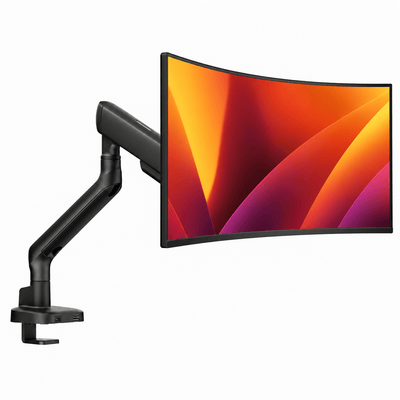
This is especially relevant with curved ultrawides. Their shape can move the center of mass farther from the mounting point than a flat panel of similar weight. A quality arm rated for the load should account for normal monitor geometry, but a very deep curve or unusually thick chassis deserves extra caution. Check the manufacturer’s compatibility guidance rather than assuming a large display behaves like any other screen.
The VESA Mount Is the Non-Negotiable Connection
A monitor arm can only support a display securely when the monitor has a compatible VESA mounting pattern. The most common patterns are 75 x 75 mm and 100 x 100 mm, though larger and heavier screens may use different dimensions.
The mounting plate must sit flush against the monitor, and the supplied screws must be the correct thread type and depth. Screws that are too long can damage the display. Screws that are too short may not fully engage. If the back of the monitor is recessed or curved, a properly designed VESA adapter or spacer may be necessary to create a secure, level fit.
Do not force a plate onto a monitor that is not designed for it. The arm is only as reliable as the connection at its end.
Naše držáky na monitor

The Desk Must Carry the System, Too
When people ask whether an arm can hold a heavy screen, they often focus only on the arm. The desk is the other half of the equation.
A clamp-mounted arm concentrates force near the back edge of the desktop. A solid wood, high-quality plywood, or durable desk surface is generally well suited to this kind of mounting when it has adequate thickness and a stable frame. Very thin particleboard, hollow-core construction, glass, or a desktop with a fragile edge can be less predictable, even if the arm itself is rated for the monitor.
A grommet mount can offer a strong alternative when the desk has a properly positioned cable-management hole and sufficient material around it. It spreads the load through the mounting point differently than a clamp, but it still depends on a sound desktop.
Before installing, inspect the underside of the desk. Avoid clamping over weak seams, drawers, metal crossbars that prevent full contact, or areas where the surface is unsupported. If the desktop needs reinforcement, a mounting plate can distribute pressure across a wider area and protect the finish.
Stability Is About More Than Weight Capacity
A setup may be within its rated capacity and still feel unstable if the desk wobbles. A tall display mounted high on an arm amplifies motion from a lightweight desk, an uneven floor, or an unstable standing desk at its highest setting.
That does not mean monitor arms and standing desks are a poor match. It means the desk frame, desktop, and arm should be selected as one performance system. The goal is a screen that stays composed when you type, raise the desk, or make a quick adjustment during a call.
How to Match an Arm to a Heavy Monitor
Start with the exact monitor model, not a general description such as “34-inch ultrawide.” Find its weight without the stand, VESA pattern, overall width, and depth. Next, compare those figures with the monitor arm’s per-screen capacity and compatibility details.
For a single large display, select a single arm designed for that weight range. For two displays, verify the capacity for each arm separately, not just the total advertised load. A dual monitor mount may be strong enough overall while one of its arms is still not suitable for an especially heavy primary screen.
Also consider the range of motion you genuinely need. A heavy-duty arm that lets you tilt, rotate, extend, and raise a display can create a highly adaptable workspace. But maximum extension increases the visual and physical presence of the monitor. If your desk sits close to a wall, a shorter, more controlled range may produce a cleaner result.
This is where premium design earns its place. A well-engineered arm is not merely a way to lift a monitor off the desk. It is a positioning tool that lets your screen support better posture without turning the workspace into a tangle of brackets and cables.
Set the Tension Correctly After Installation
Even the right arm will not perform well until it is adjusted for the display. Most articulated arms include a tension adjustment, often controlled with an Allen key. This setting counterbalances the monitor’s weight.
Install the screen before making meaningful adjustments. If the display rises on its own, reduce tension gradually. If it sinks, increase tension in small increments. Never force the adjustment screw beyond its intended range, and do not try to compensate for an overweight monitor by overtightening the mechanism.
Once the monitor holds position, set the top of the screen at or slightly below eye level for most seated work. Place it at a comfortable viewing distance, then use tilt to reduce glare rather than craning your neck. The right position should feel quiet and natural: your shoulders relaxed, your eyes level, and your desk surface open.
Signs Your Setup Needs a Different Solution
A monitor that slowly droops, tilts forward, or refuses to stay at the selected height is telling you something. First, confirm the arm tension is adjusted correctly. If it is, the screen may be outside the arm’s supported range, mounted with an incompatible adapter, or positioned in a way that exceeds the arm’s intended geometry.
Watch for movement at the desk clamp as well. A shifting clamp, compressed desktop surface, or spreading crack is a stop-use issue, not a cosmetic concern. Remove the monitor, inspect the installation, and reinforce or change the mounting approach before reinstalling.
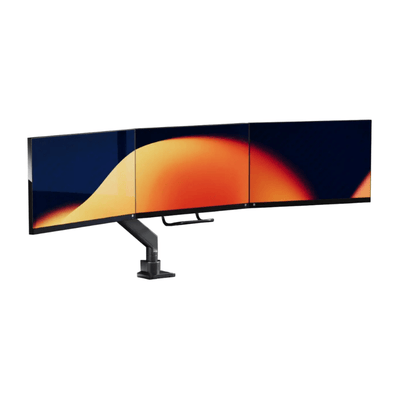
For exceptionally heavy professional displays, oversized curved screens, or complex multi-monitor layouts, choose hardware designed specifically for that category. Trying to make a light-duty arm do heavy-duty work rarely delivers the clean, confident setup you wanted.
A heavy screen deserves more than a place to sit. With the right capacity, a secure mount, and a stable desk, it can float at the exact height and angle that makes long workdays feel more focused, comfortable, and considered.