

A desk can look organized and still work against you. If your screen pulls your chin forward, your laptop keeps your shoulders lifted, or your chair leaves your feet hanging, the setup is costing you comfort long before the workday ends. This home office ergonomics guide focuses on the adjustments that make the biggest difference: screen placement, seated support, clear reach zones, and room to move.
The goal is not to sit perfectly still for eight hours. It is to build a workspace that supports focused work without forcing your body into one cramped position. A well-designed desk setup should feel considered, capable, and almost invisible while you use it.
Start With Your Screen, Not Your Chair
Your monitor is the visual center of your workday, so its position shapes almost everything that follows. When a display sits too low, you tend to bend your neck down. When it sits too high, your chin rises and your upper back starts doing unnecessary work. A screen that is too close can cause eye fatigue, while one that is too far away encourages you to lean forward.
For most people, the top third of the display should sit near eye level when you are seated comfortably. Keep the screen roughly an arm's length away, then adjust based on the size and resolution of your monitor. Larger displays may sit slightly farther back. If you use progressive lenses, you may prefer a lower screen position to avoid tipping your head backward.
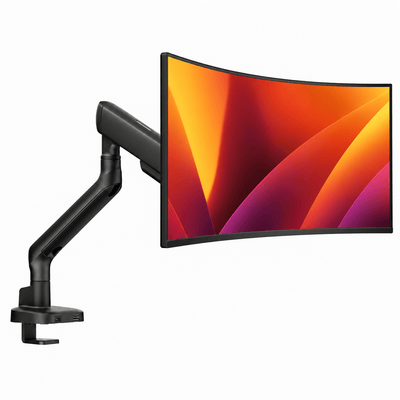
This is where a monitor mount earns its place. It lets you set the display at a true working height instead of accepting whatever your desk surface allows. Just as useful, it clears the base from your desktop, creating a cleaner visual field and more room for notes, a keyboard, or the tools you use every day.
Working With Two Screens
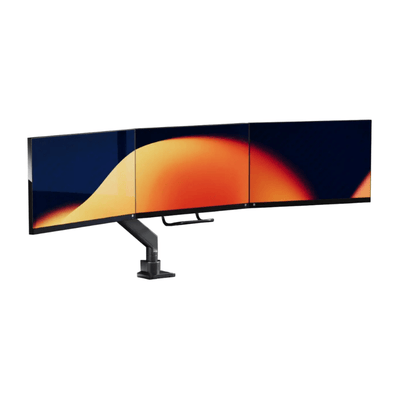
A dual-monitor setup needs a different approach. If both displays get equal use, place the seam between them directly in front of you and angle each screen inward slightly. Your eyes should travel more than your neck. If one monitor is your primary screen, center that display and position the secondary screen close beside it.
Avoid placing a second monitor so far to the side that you spend hours rotating your head. The extra screen should extend your workspace, not create a new source of tension. A double monitor mount makes fine positioning easier, especially when you switch between focused solo work, collaborative calls, and creative projects.
Laptop Users Need a Separate View
A laptop is built for portability, not all-day desktop posture. Its keyboard and screen are attached, which means raising the screen usually puts the keys too high, while lowering the keyboard puts the screen too low. Trying to compromise often means accepting both problems.
For a long home-office session, lift the laptop with a dedicated mount or riser and use an external keyboard and mouse. Position the laptop screen as you would a monitor, then keep the external keyboard low enough that your shoulders can stay relaxed. This simple separation is one of the fastest ways to make a compact desk feel like a serious workstation.
Build the Home Office Ergonomics Guide Around Your Body
Ergonomics is personal. General measurements are useful starting points, but your height, desk depth, vision, chair design, and daily tasks all affect the final setup. Rather than forcing your body to fit standard furniture, adjust the equipment around your natural working posture.
Begin with your chair. Sit fully back so the backrest supports the natural curve of your lower back. Your feet should rest flat on the floor or on a stable footrest, with your knees roughly level with or slightly lower than your hips. If your feet cannot reach the floor after you raise your chair to the right desk height, a footrest is the better fix. Lowering the chair may solve one issue while creating another at the keyboard.
Next, check your elbows. With your arms close to your sides, your elbows should bend at about 90 to 110 degrees while typing. Your forearms should feel supported but not pinned. If you have to reach up to the desk, your shoulders will gradually creep toward your ears. If the surface is too low, you may collapse forward through your upper body.
Armrests can help, but only if they fit under the desk and do not block your ability to sit close enough. Some people work better with armrests lowered or moved out of the way during active typing. The right choice depends on how often you alternate between keyboard work, reading, drawing, and meetings.
Keep Your Most-Used Tools in the Primary Zone
A premium desk setup is not defined by how much gear it holds. It is defined by how efficiently it supports the work in front of you. Place your keyboard, mouse, and primary writing tools in the area you can reach with relaxed elbows. Items you use a few times a day can sit farther away. The tools you rarely use should not take up prime desk space.
Your mouse deserves particular attention. Keep it close enough that you do not reach outward from the shoulder, and leave enough open space to move it without bumping into a notebook, coffee mug, or charging cable. If your wrist feels bent sharply up, down, or sideways while mousing, adjust your chair height, input position, or desk surface before buying another accessory.
A compact keyboard can bring the mouse closer to your centerline, which may help if you work in a narrow space. On the other hand, a full-size keyboard may be the better choice if you rely on a number pad all day. Ergonomics should serve the work, not turn your desk into a collection of rules.
Våra monitorarmar

Make Desk Depth Work Harder
Shallow desks are common in apartments, spare rooms, and multi-use spaces. They can still support a comfortable setup, but they require smarter use of vertical space. A monitor arm moves the display off the desk and lets you push it farther back. A laptop mount creates room beneath the device. Cable management prevents cords from occupying the area where your hands and tools need to move.
The visual payoff matters, too. A desk crowded with stands, cables, and uneven screen heights creates low-level friction every time you sit down. Clean sightlines make the workspace feel calmer, but the real benefit is functional: less clutter means fewer awkward reaches, easier cleaning, and a clearer place for the task at hand.
Choose hardware that matches the weight and size of your displays. A mount that looks refined but cannot hold your monitor steadily is not an upgrade. Stable, heavy-duty support protects the investment you have already made in your screens while giving you the freedom to adjust them throughout the day. Alberenz designs this category around that balance of performance, durability, and a more elevated desktop.
Design for Movement, Not Stillness
Even the best chair and monitor position become uncomfortable when held for too long. Your body benefits from regular changes in position, not a single "perfect" posture. Shift from sitting upright to a lightly reclined position. Stand for a call. Walk while you review a document. Look across the room between focused screen tasks.
You do not need a complicated routine. Let natural transitions create movement: stand when you refill water, reset your shoulders after sending a project, or take a short lap before your next meeting. If you use a sit-stand desk, change height gradually and make sure your monitor height changes with you. A screen left too low in standing mode simply replaces one posture problem with another.
Eye comfort follows the same principle. Give your focus a break by looking at something farther away for a few moments. Reduce glare from windows or lamps before increasing brightness. If your eyes feel dry or strained, check screen distance and text size first. Squinting at tiny type is not a productivity strategy.
Refine the Setup Through Real Work
Set your desk once, then pay attention to what happens over the next several days. Notice when your shoulders tense, where you start leaning, and which objects create repeated reaching. The most useful ergonomic changes often reveal themselves during real work, not during a one-minute posture check.
Make one adjustment at a time so you can feel what changed. Raise a monitor slightly. Bring the mouse in closer. Add support beneath your feet. Move a secondary display inward. Small refinements compound into a workspace that feels sharper, calmer, and easier to return to every morning.
Your desk should not demand that you adapt to it. Build it around the way you work, leave space to move, and let every component earn its place. When comfort, performance, and visual order align, the workday has a better foundation.