

A monitor that shivers every time you type can make an otherwise polished desk feel unfinished. So, do monitor arms wobble? Some movement is normal, especially when the desk itself absorbs vibration. Persistent shaking, sagging, or a screen that never settles is not. A well-specified, properly installed monitor arm should hold your display in place with quiet, controlled confidence.
The difference comes down to more than the arm alone. Your monitor’s weight, the desk material, the mounting method, the arm’s tension settings, and even how you use your keyboard all affect perceived stability. Here is how to tell the difference between normal motion and a setup that needs attention.
Do Monitor Arms Wobble Under Normal Use?
A quality monitor arm is designed to move when you need it to, then remain still when you do not. That means you may see a brief, subtle bounce after adjusting the screen or pressing firmly on the desk. On a lightweight desk, a high-energy typing style can also send a small amount of vibration through the surface and into the monitor.
That brief motion should disappear quickly. It should not look like the screen is floating, continue for several seconds, or make focused work uncomfortable. If your display shakes during ordinary typing, drifts lower through the day, or twists away from its intended angle, something in the setup is under-supported or incorrectly adjusted.
There is also a practical trade-off with tall or ultrawide displays. A large screen creates more leverage than a compact 24-inch monitor, particularly when positioned high, far forward, or at full extension. The arm may be rated for the monitor’s weight but still require more careful setup to feel completely composed.
What Actually Causes a Monitor Arm to Wobble?
Most instability begins at the desk, not at the monitor arm. A thick hardwood desktop behaves very differently from a hollow-core surface, particleboard panel, or standing desk with a flexible frame. When the desk moves, the arm amplifies that motion because it raises the monitor above the work surface.
A loose clamp is another common cause. The clamp needs firm, even contact with a solid section of the desktop. If it is mounted near a weak edge, on a beveled lip, or over a cable tray or structural seam, it cannot establish a secure base. Tightening the clamp without checking the contact point can damage a desk without solving the movement.
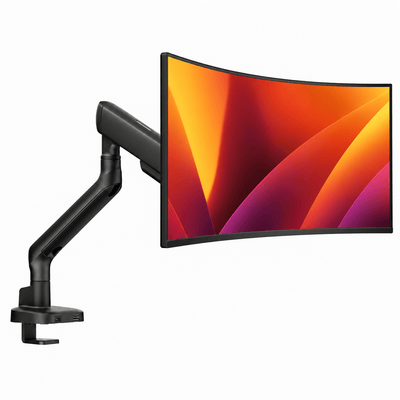
The monitor’s dimensions matter as much as its listed weight. An arm can carry a screen within its capacity range, yet still feel less stable if the display is especially wide or deep. The farther the monitor’s center of gravity sits from the arm, the more torque the joints must manage. This is why a 34-inch ultrawide or a curved display deserves a mount built for its true load and profile, not just a close-enough weight rating.
Finally, arm tension has to match the display. Gas-spring arms use adjustable tension to counterbalance monitor weight. Too little tension and the monitor sinks. Too much and it rises or resists repositioning. Neither setting necessarily causes side-to-side wobble, but an unbalanced arm can make the entire setup feel less controlled.
A Fast Stability Check Before You Buy Anything New
Before assuming your mount has failed, take a few minutes to isolate the source of the movement. Start with the monitor turned off and hold the outer edge of the screen gently. If the display shifts where it meets the VESA plate, the screws or plate connection may need tightening. Do not overtighten. Secure hardware should be firm, not forced.
Next, hold the arm close to the desk mount and lightly press the desktop. If the desktop flexes or rocks, the desk is the primary issue. A premium arm can minimize movement, but it cannot make a light, unstable desk frame behave like a solid workstation.
Then inspect the clamp or grommet mount. The mounting hardware should sit flat against the desktop, with no gaps, slipping, or crushed material beneath it. On desks with softer surfaces, a reinforcement plate can spread the load across a larger area and reduce flex at the mounting point.
Finally, check every adjustment point with the monitor in its normal working position. Test the arm at the height, extension, and angle you use each day, not simply when it is pulled close to the mounting point. If the setup is stable close to the base but becomes shaky at full reach, reduce extension slightly or confirm that your arm is engineered for that display size and configuration.
Våra monitorarmar

How to Make a Monitor Arm Feel More Stable
The cleanest desk setups are built on a stable foundation. Position the arm as close to the desk’s strongest support as possible. On many desks, that means avoiding the most flexible outer edge and choosing a section supported by the frame or a more substantial part of the top.
If your desk allows both clamp and grommet mounting, the right choice depends on the surface. A clamp is convenient and highly secure when used on a solid, compatible desktop. A grommet mount can provide exceptional stability by fastening through the desk, but it requires an appropriate hole and may not suit renters or anyone who does not want a permanent installation.
Keep the monitor’s center of gravity close to the arm whenever possible. You do not need to give up ergonomic positioning, but avoid extending the arm farther than your workspace requires. A screen placed at a comfortable viewing distance, with its top near or slightly below eye level, often needs less reach than people expect.
Cable management helps more than the visual finish. Heavy, tightly pulled cables can tug on a monitor during adjustment and add tension at the VESA plate. Route cables with enough slack for the arm’s full range of movement, then secure them along the arm’s channels or clips. The result is a desk that looks intentional and moves without resistance.
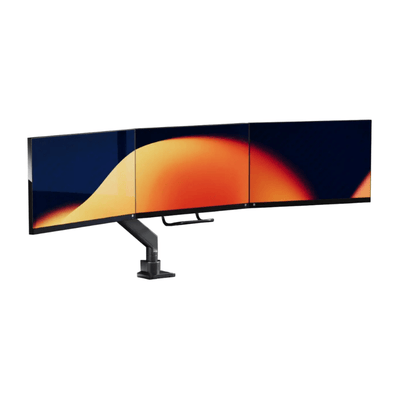
For dual-monitor setups, balance is especially important. Two displays do not always weigh the same, and their combined width can create a wide, visually dominant structure. Choose a double monitor mount with independent adjustment and sufficient capacity for each screen. Mounting two large displays on hardware intended for lighter office monitors invites vibration, drooping, and an uneven visual line.
When Wobble Points to the Wrong Monitor Arm
Not every arm is designed for every display. A lower-capacity arm may work adequately with a standard monitor yet struggle with a heavier model, a curved ultrawide, or a screen with a thick rear housing. Check the manufacturer’s supported weight range, but also look at the recommended display size and VESA compatibility.
Build quality is easy to underestimate until the screen is elevated above your desk. Stronger joints, a substantial base, precise tension control, and durable internal mechanisms produce a more settled experience over time. That is not just a comfort feature. A stable mount makes it easier to maintain an ergonomic screen position, work without distraction, and preserve the clean lines that make a desk feel considered.
This is also where investing in a premium mount pays off. A thoughtfully engineered option, such as an Alberenz monitor mount, is made to support the display and the way you actually work: frequent adjustments, long hours, modern monitors, and a desk that needs to look as sharp as it performs.
The Stability Standard Worth Expecting
A monitor arm does not need to be rigid in the way a fixed stand is rigid. Its purpose is controlled movement, not zero movement under every possible touch. But once your screen is positioned, it should feel settled. You should be able to type, take calls, edit, game, and move through your day without a distracting ripple across the display.
If you notice wobble, start with the desk and mounting point, then verify monitor compatibility and arm tension. Small adjustments often make a meaningful difference. And if your screen still feels unsettled after those checks, treat that as useful information: your workspace is asking for hardware that matches its ambition. A steady display is a small detail that changes how the whole desk performs.