

Your desk should not leave you looking down, leaning forward, or clearing a path through cables every morning. The best ergonomic desk upgrades solve the small frictions that build up over a long workday: a screen set too low, a laptop that takes over the surface, a keyboard positioned just out of reach, or a workspace that never quite feels finished.
A better setup is not about adding more gear for its own sake. It is about creating a workstation that supports focused work, looks intentional, and adapts as your day changes. Start with the upgrades that affect your posture and usable desk space first, then refine the details that make the setup feel truly your own.
Ergonomic Desk Upgrades Start With Screen Position
Most desk discomfort begins at eye level. When a monitor sits too low, you compensate by dropping your chin and rounding your upper back. When it sits too high, your neck stays extended. Neither position feels dramatic for the first 20 minutes. After several hours, both can change how you work.
1. Add a monitor mount
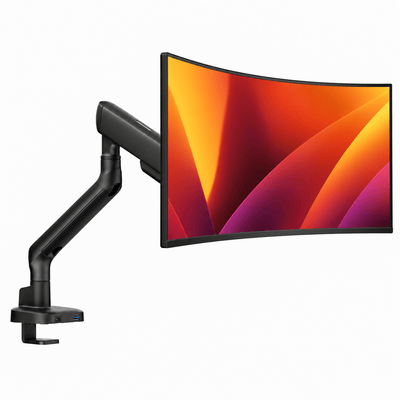
A monitor mount is one of the highest-impact changes you can make because it gives your display a proper place in the setup. The general target is simple: position the top third of the screen near eye level, with the display roughly an arm's length away. From there, make small adjustments based on your posture, screen size, and prescription lenses.
A quality monitor arm also lets you pull the screen closer for detailed work, push it back when you need more desk depth, and angle it to reduce glare. Just as valuable, it lifts the monitor off the desktop. That clear surface changes the visual weight of the entire workspace.
Before choosing an arm, check your monitor's weight, VESA mounting pattern, and the thickness of your desk. Heavy-duty hardware costs more than a basic stand, but it pays off when the monitor stays exactly where you place it instead of sagging, wobbling, or fighting back during adjustments.
2. Choose a double monitor mount for side-by-side work
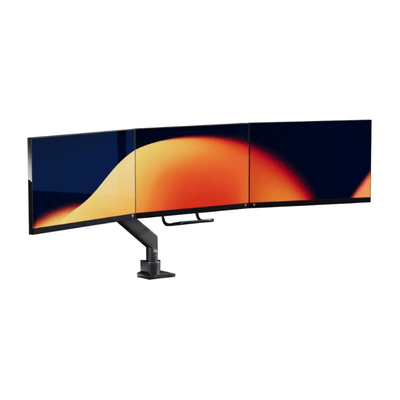
Two monitors can improve workflow for analysts, designers, developers, gamers, and anyone who regularly references one window while working in another. The mistake is placing two displays on their original stands, where they consume a large portion of the desk and leave both screens at compromised heights.
A double monitor mount brings the displays into a single, controlled visual zone. Set the screens close together, with a slight inward angle, so your eyes can move naturally between them. If one display is your primary screen, place it directly in front of you and move the secondary display to the side. If you use both equally, center the gap between them with your body.
There is a trade-off. A dual setup is not automatically more ergonomic if it makes you rotate your neck all day. For work that happens mostly on one screen, a single larger display may be the cleaner choice. The right answer depends on how you actually use your desk, not how impressive the setup looks in a photo.
3. Raise the laptop instead of working into it
Laptops are built for portability, not all-day desktop posture. On a desk, the screen usually lands far below comfortable viewing height. Raising it with a dedicated laptop mount brings the display closer to eye level and opens space beneath it for a cleaner work surface.
Once the laptop is elevated, use an external keyboard and mouse. This matters because you cannot keep the screen high and type comfortably on the laptop keyboard at the same time. A laptop-monitor mount can be especially effective in compact setups, giving both screens a balanced position without turning the desk into a crowded platform.
For hybrid workers, this upgrade creates a more deliberate arrival routine. Dock the laptop, connect your accessories, and work from a setup that feels consistent whether you are at the office three days a week or home full time.
Build a Surface That Supports Natural Movement
Screen height gets attention because it is visible. Keyboard, mouse, and chair relationships matter just as much. Your arms should not have to reach, shrug, or hover to access the tools you use most.
4. Create a better keyboard and mouse zone
Place your keyboard at a height that allows your shoulders to stay relaxed and your elbows to rest near your sides. Your forearms should travel forward without strain, and your wrists should remain as neutral as possible rather than bent sharply upward or sideways.
Keep the mouse close to the keyboard. A mouse positioned too far out to the side turns a simple task into hours of repetitive reaching. If your desk is shallow, freeing space with a monitor mount can make a meaningful difference here. You gain the depth to position your input devices where your body wants them, not where the monitor stand forces them.
5. Make room for task changes
A productive desk supports more than one posture. You may type for an hour, sketch ideas on paper, review a document, take a video call, and switch to focused editing before lunch. A setup that locks every inch of the surface into one purpose can feel restrictive.
Leave a clear working area in front of you. Store daily essentials within easy reach, but move secondary items out of the prime zone. This might mean relocating a charger, notebook stack, gaming controller, or headphones to a designated spot rather than letting them migrate across the desk.
The goal is not an empty desk. It is a desk where each object earns its place and does not interfere with your next task.
6. Improve chair and desk alignment before buying more accessories
Ergonomic hardware performs best when the chair and desk height are working with it. Start by setting your chair so your feet are supported on the floor or a footrest, your knees are comfortable, and your hips are not forced too low relative to the desk. Then adjust the monitor and keyboard positions around that foundation.
If the desk is too high for your seated position, lowering the chair may leave your feet unsupported. In that case, a footrest can be a practical solution. If the desk is too low, raising the work surface or choosing an adjustable desk may be more appropriate. There is no universal setting because body proportions, footwear, and desk dimensions vary.
Reduce Visual Noise Without Hiding Function
A premium workspace should feel calm at a glance. Clutter is not merely an aesthetic issue. It makes frequently used tools harder to find, limits usable space, and can create the sense that work is never fully under control.
7. Route cables with intention
Cable management is one of the least glamorous ergonomic desk upgrades, yet it has an outsized effect on how a setup feels. Loose cables pull at devices, collect dust, and make even well-chosen hardware look temporary.
Route power, display, and charging cables along the underside or rear edge of the desk. Leave enough slack for a monitor arm to move through its full range, but avoid long loops hanging in view. Group cables by function where possible, and make sure connections remain accessible when you need to change devices.
A clean cable path also protects the investment in your setup. It reduces accidental snags and helps every component look integrated rather than added one at a time.
8. Use a monitor riser when an arm is not the right fit
A monitor riser offers a simple, stable way to elevate a display while adding structure to the desktop. It can be an excellent choice for lighter setups, shallow desks, or anyone who prefers a fixed viewing position. Some people also like the visual presence of a riser, especially when it creates a defined home for a monitor without adding moving hardware.
The limitation is adjustability. A riser cannot bring a screen forward, swing it aside, or reclaim as much desktop space as a mount. Choose it when your display placement is already close to ideal and you want a refined elevation solution. Choose an arm when flexibility and surface space are the priority.
9. Finish with accessories that remove daily friction
The final layer is personal. A well-placed headphone holder, charging solution, document stand, or desk mat can make your workspace more comfortable to use and more satisfying to return to. These details should support your habits, not create a catalog of accessories you feel obligated to use.
Think about the moments that interrupt your focus. Are you searching for a charging cable? Moving headphones off the keyboard before every call? Shifting papers to make room for a notebook? Solve those repeat frustrations first. The most effective accessory is often the one you stop noticing because it quietly keeps the desk in order.
I nostri supporti monitor

Choose Upgrades That Work Together
The strongest setups are built as systems. A laptop mount makes more sense with an external keyboard. A dual monitor arm works best when the desk has enough depth and the screens are sized for the work. Cable management becomes easier when mounts keep devices elevated and connections contained.
This is where premium hardware earns its place. Durable components, reliable adjustment, and clean finishes help a workspace stay composed through daily use. Alberenz approaches the desk as both a performance environment and a design statement, because the two are more connected than they appear.
You do not need to rebuild everything at once. Start with the position of your primary screen, then follow the friction. When each upgrade gives your body more freedom and your desk more purpose, the workday begins to feel less like something you endure and more like a space designed to move you forward.



