

The second screen should create more room for your best work, not more reasons to turn your head, crowd your keyboard, or hide cables behind a stack of accessories. This dual screen desk setup guide is designed for people who expect their workspace to feel focused, comfortable, and considered from the first meeting to the final task of the day.
A well-built dual-monitor desk is not about adding more hardware. It is about putting every element in its right place. When screen height, viewing distance, monitor alignment, and desk organization work together, two displays become one more powerful workspace.
Start With the Work You Actually Do
Before choosing a mount or measuring your desk, consider how you use your screens. The right layout depends on your primary task, not just the size of your monitors.
For spreadsheet-heavy work, coding, design, finance, or video editing, two equal-size monitors placed side by side often make the most sense. One screen can hold the active project while the other supports research, communication, timelines, files, or reference material. A symmetrical layout also gives the desk a composed, professional look.
If your work centers on one primary display, use the second monitor as a supporting screen. This is common for remote professionals who need a main screen for focused work and a secondary display for chat, calendars, notes, or video calls. In that case, position the primary monitor directly in front of you and angle the secondary display inward from the side.
Gamers and creators may prefer a landscape monitor in the center with a vertical display beside it. Portrait orientation is especially effective for long documents, code, social media workflows, live chat, and reading. It saves scrolling without turning the entire desk into a wall of screens.
The key is simple: your most important display belongs in your natural line of sight. Do not force your body to adapt to a layout chosen only for aesthetics.
Choose a Dual Screen Layout That Supports Posture
A dual screen desk setup succeeds or fails at eye level. If both monitors sit too low, you will gradually lean forward. If they sit too high, your neck stays extended. Either way, an eight-hour workday can turn a premium setup into a source of fatigue.
Set the top third of your primary screen at or slightly below eye level. This gives most people a comfortable downward viewing angle without collapsing their posture. If you wear progressive lenses or have a specific visual preference, a slightly lower screen position may feel better. Ergonomics is personal, so use these measurements as a starting point rather than a rigid rule.
Keep the displays roughly an arm's length away. Larger monitors may need more distance, especially if you find yourself moving your head to read the edges. Smaller screens can sit a little closer, but avoid placing them so near that your eyes work harder than necessary.
For equal monitors, align their top edges and place the bezel junction near your centerline. Angle both screens slightly inward to create a soft curve around your field of view. This reduces the need for repeated neck rotation and makes moving between windows feel more natural.
When one monitor is primary, center that screen with your keyboard and chair. Position the second monitor close enough that you can glance at it without twisting through your torso. A small angle is useful. An extreme angle is a sign that the layout needs refinement.
Use a Monitor Mount to Reclaim the Desk
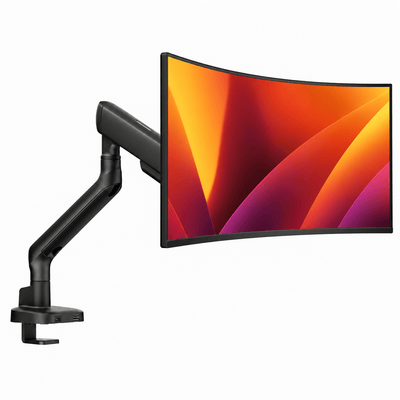
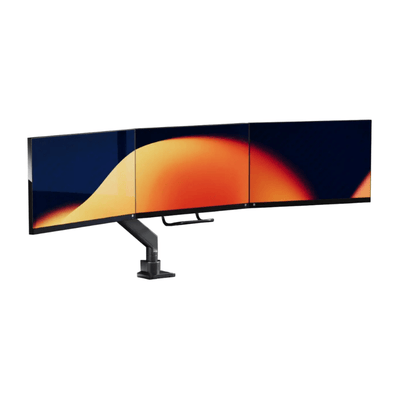
Monitor stands consume more desk space than they appear to. Their footprints push keyboards forward, limit where you can place speakers or notebooks, and make cable management harder. A quality double monitor mount changes that equation by lifting both displays off the desk and giving you control over height, depth, tilt, swivel, and rotation.
That range of adjustment matters because your ideal setup may change during the day. You might pull a screen closer for detailed design work, rotate one display vertically for writing, or shift both monitors to create space for a notebook during a planning session. Fixed stands cannot offer that flexibility.
Choose a mount based on the weight and size of your monitors, not appearance alone. Check the monitor weight without its factory stand, confirm VESA compatibility, and account for ultrawide or curved displays if you use them. A heavy-duty mount should feel stable at every position, without sagging, drifting, or requiring constant readjustment.
Installation style also depends on your desk. A clamp mount is often the practical choice for most desks because it avoids drilling and can be repositioned. A grommet mount can create an even cleaner installation when your desk has a suitable cable hole or you are comfortable making a permanent opening. In either case, make sure the desktop is strong enough to support the combined load.
A premium mount is not merely a way to hold screens. It is the foundation that gives the entire setup visual order and ergonomic range.
I nostri supporti monitor

Build the Desk Around Your Screen Position
Once the monitors are set, place everything else around them. Start with your keyboard and mouse, since they determine where your shoulders, arms, and wrists rest throughout the day.
Keep your keyboard directly in front of the primary monitor. Your elbows should stay comfortably close to your sides, with forearms approximately parallel to the floor. If your shoulders creep upward while typing, lower the keyboard or adjust your chair. If your wrists bend sharply upward, consider lowering the keyboard height or using a more neutral input position.
Your mouse should sit close enough that you do not reach from the shoulder. On a dual-screen setup, people often place the mouse too far to one side to make room for other accessories. That small compromise becomes repetitive strain over hundreds of movements each day.
Leave clear space immediately in front of you. This is where a desk can either feel calm or chaotic. A slim desk mat, a notebook, and the tools you use daily are enough. Store everything else in a drawer, tray, or dedicated zone. The goal is not an empty desk. It is a desk where every visible item earns its place.
If you work with a laptop, avoid treating it as a third low-level screen. Raise it with a laptop mount or stand, then use an external keyboard and mouse. This preserves a more natural head position while making the laptop part of the system rather than an awkward add-on.
Make Cable Management Part of the Design
Visible cables can make even expensive equipment look temporary. More importantly, unmanaged cables complicate adjustments. Every time you move a monitor, a tight cable can pull, snag, or limit the arm's range of motion.
Route monitor cables along the mount arms where possible, leaving enough slack for full movement. Run power and data cables separately when you can, then guide them down one side or the back of the desk. A cable tray beneath the desktop keeps power strips and excess length out of sight while making the floor easier to clean.
Use short cables only when they still allow the monitors to move comfortably. An overly short cable creates tension. One that is excessively long creates visual noise. The right length is clean, controlled, and flexible.
This is also the right moment to reduce unnecessary gear. A single docking solution, a compact charging station, or a properly placed power strip can eliminate the tangle created by multiple adapters. Clean cable management is one of the fastest ways to make a desk feel intentional.
Refine the Visual Balance
Performance and aesthetics are not competing priorities. A desk that looks composed is easier to return to, easier to maintain, and often easier to work from.
Match monitor heights and spacing whenever your workflow allows. Use a restrained color palette across your mount, desk accessories, lighting, and peripherals. Keep decorative items limited to a few pieces with scale and purpose, such as a small plant, a refined lamp, or an object that adds personality without taking over the work surface.
Lighting deserves the same attention as hardware. Avoid placing a bright window directly behind your monitors, which creates glare and forces your eyes to constantly adjust. A soft task light or indirect ambient light can make the screen area feel more comfortable, particularly during early mornings and late evenings.
At Alberenz, the best setups are built around this idea: high-performance hardware should disappear into the way you work while elevating everything you see.
Test It for a Full Week
Do not judge the setup five minutes after installation. Use it through real work: calls, concentrated tasks, long writing sessions, late-afternoon fatigue, and the constant switching between applications that defines a modern desk job.
If you notice a stiff neck, adjust monitor height or angle before blaming the chair. If your desk feels crowded, remove items before buying more storage. If you keep favoring one display, reconsider which screen is centered. Small changes can produce a noticeably better experience.
Your desk should make focused work feel easier to begin. Set the screens with intention, clear the surface, and leave room for the work that matters.