

A monitor arm should make your display feel weightless, not unpredictable. If your screen slowly sinks, rises on its own, droops forward, or resists every adjustment, it is time to adjust monitor tension. A few careful turns can restore smooth movement, keep your screen at the right height, and make your desk feel as considered as the work you do on it.
Why Monitor Arm Tension Matters
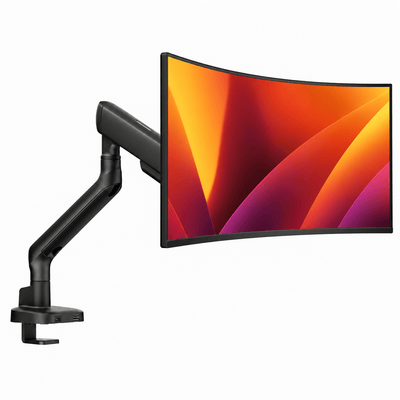
A premium monitor mount is designed to hold a display in position while still allowing effortless movement. That balance comes from tension. Inside most gas-spring and mechanical monitor arms, an internal spring system counteracts the weight of your monitor. When that resistance is correctly set, the arm stays where you place it without requiring force to move.
The right setting affects more than convenience. A screen that sits too low can pull your head forward over a long workday. One that floats too high may force you to lift your chin. A monitor that sags at the tilt joint can also introduce glare and an awkward viewing angle, even when the arm itself is set at the correct height.
Tension adjustment is not a one-size-fits-all setting. It depends on the total load attached to the arm, including the monitor, VESA plate, adapters, webcam, light bar, and any other accessories mounted to the display. A 27-inch monitor can weigh less than a 24-inch model, so use actual weight rather than screen size as your guide.
Identify the Problem Before You Adjust Monitor Tension
Monitor arms typically have separate adjustment points for lift, tilt, swivel, and rotation. Turning the wrong screw can solve nothing or make a well-balanced arm difficult to use. Take a moment to identify what the monitor is actually doing.
If the entire arm slowly drops after you raise it, the main lift tension is too low. If the arm rises when you let go, lift tension is too high. If the screen itself tips downward or will not hold a vertical position, the issue is usually the tilt joint behind the monitor. If the display rotates from landscape to portrait too freely, look for a rotation or pivot adjustment near the VESA head.
Most quality monitor mounts mark these points with plus and minus symbols, tension icons, or labels. The main spring adjustment is often located along the upper arm or close to the elbow joint. Tilt tension is generally found behind the monitor, near the VESA connection. Keep the product manual nearby if you have it, especially with a dual-monitor mount where each arm may have its own adjustment mechanism.
What You Need Before You Start
Most monitor arms include the required Allen key in the box. If yours is missing, use the correct size hex key rather than a substitute that could round the adjustment screw. You may also want a soft cloth to protect the desk or display while you work.
Before making any adjustment, confirm that your monitor falls within the arm's supported weight range. Do not guess. Check the monitor manufacturer's listed weight without its stand, then account for attached accessories. An arm cannot be tuned to safely support a display that exceeds its rated capacity. Adding excessive tension to force it into place can strain the mechanism and shorten its working life.
Make sure the clamp or grommet base is also secure. A loose base can feel like an arm tension issue when the real problem is movement at the desk connection. On a thin, hollow, glass, or delicate desktop, use the proper reinforcement hardware if your mount requires it.
Monitortartóink

How to Adjust the Main Lift Tension
Start with the monitor installed. The spring needs the weight of the display to give you an accurate result. Hold the monitor with one hand before turning any adjustment screw, particularly if the screen has been drifting downward.
Locate the main tension screw and use the supplied Allen key. If the monitor falls, turn the screw toward the plus symbol in small increments, usually one or two turns at a time. If the monitor rises or feels overly stiff, turn toward the minus symbol.
After each small adjustment, move the screen through its usual height range. Raise it, lower it, and release it at a few different positions. The goal is not maximum resistance. The goal is controlled movement with dependable hold. A properly balanced arm should let you reposition the display with a light touch, then stay exactly where you stop.
Avoid large turns. An aggressive adjustment can quickly overcorrect the spring, making the arm difficult to bring down or causing the screen to pop upward. Small changes take longer, but they protect the mechanism and make it easier to find the ideal setting.
Adjusting Tilt Tension
Tilt tension controls the angle of the screen, not its height. If the top of your monitor leans forward over time, support the display and tighten the tilt adjustment slightly. If you need both hands to angle the screen, reduce the tension by a small amount.
This adjustment deserves extra care because the monitor is farther from the joint and can shift suddenly. Keep one hand on the display, make a small turn, and test it. Your screen should hold its chosen angle without requiring excessive force to reposition.
For a comfortable viewing position, set the center of the screen around eye level or slightly below. Tilt the top of the display back slightly if that reduces reflections and helps you keep a neutral neck position. The best angle depends on your chair height, desk depth, lenses, posture, and the kind of work you do.
Fine-Tune for the Way You Work
Once the arm is balanced, set your screen for your actual work posture rather than a showroom-perfect setup. Sit in your usual chair position with your shoulders relaxed and feet supported. Then bring the monitor close enough to read comfortably without leaning forward.
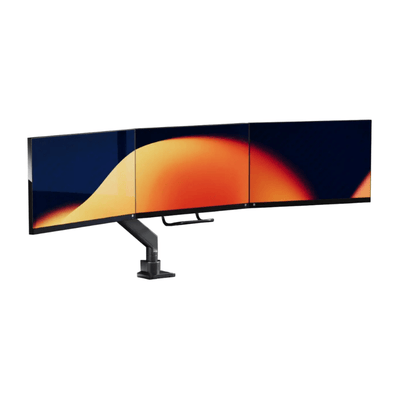
For a single display, placing the monitor directly in front of you usually creates the most natural viewing position. With dual monitors, center the primary screen and angle the secondary display inward. If you split your day evenly between both screens, position the seam between them close to your centerline and use a gentle inward curve.
This is also the right time to manage cables. Leave enough slack for the arm to travel through its full range without pulling on power, video, or USB connections. Route cables through the arm's built-in channels where available, but do not pack them so tightly that they limit movement. Clean cable routing protects the adjustment you just made and keeps the desk visually calm.
Common Tension Problems and What They Mean
If your monitor still drops after increasing lift tension, first confirm its weight and check for an adapter, oversized display, or added accessory that puts it over capacity. If it is within range, make sure you are adjusting the main lift screw rather than the tilt joint. In some cases, the arm may be at the edge of its supported range and need a mount built for a heavier display.
If the monitor rises even after reducing tension, it may be too light for that particular arm. This can happen when a heavy-duty arm is paired with a compact, lightweight monitor. The arm's minimum weight rating matters just as much as its maximum rating.
If the arm is stable but the screen continues to lean forward, focus on the tilt joint. If movement feels rough or sticks at certain points, inspect cable routing and confirm no object is blocking the arm's path. Never apply lubricants unless the manufacturer specifically recommends them. A clean, correctly loaded mechanism should operate smoothly without improvised fixes.
Protect Your Mount While You Adjust It
Monitor tension is meant to be adjusted, but it should not become a daily ritual. Once your display is balanced, leave the settings alone unless you change monitors, add meaningful weight, or reconfigure the workstation.
Do not force an arm beyond its intended range of motion. Repeatedly pulling an arm lower or farther forward than its design allows can stress the joints, cables, and desk mount. When moving the desk or shipping equipment, support the arm and monitor rather than relying on tension alone.
A well-built mount earns its place by disappearing into the workflow. It holds the screen with quiet confidence, frees valuable desk space, and lets your display move when your work does. Set the tension with patience, then enjoy a screen that feels precisely placed every time you sit down.