

A monitor that shakes every time you type, adjust your chair, or reach for your coffee is more than a minor annoyance. It breaks concentration, makes precise work feel harder, and can make an otherwise refined desk setup feel unfinished. Knowing how to prevent monitor wobble starts with finding the source of movement, then building stability into every point of your workspace.
A steady screen should feel almost invisible. Whether you are editing a timeline, reviewing a presentation, gaming, or moving between meetings, your monitor should stay exactly where you placed it.
Start by Finding What Is Actually Moving
Monitor wobble is often blamed on the monitor arm, but the arm is only one part of a larger system. Your desk surface, mounting method, display weight, cable routing, and even the floor beneath your desk can all contribute to visible movement.
Place one hand lightly on the desk while the screen is wobbling. If the desktop itself vibrates, the issue is likely desk flex, loose hardware, or an unstable frame. If the desk stays still but the monitor moves, inspect the mount connection, arm joints, and monitor attachment point. This simple test prevents you from tightening the wrong component.
It also helps to notice when the movement occurs. Wobble while typing points to desktop vibration. Wobble when adjusting screen height may indicate insufficient tension in the arm. A screen that slowly dips or rotates is usually a balance or weight-capacity issue rather than a desk problem.
How to Prevent Monitor Wobble With a Stable Foundation
A premium monitor mount performs best when it is attached to a desk that can support it. Thin particleboard desktops, hollow-core surfaces, and lightweight standing desks may flex under the combined leverage of an extended monitor arm and a larger display.
Start by checking that every desk fastener is tight. Inspect the legs, crossbars, frame connections, and desktop screws. A small amount of looseness at the base can become noticeable movement at the top of a monitor, especially with a 27-inch, 32-inch, or ultrawide display.
Next, consider where the mount sits on the desktop. The rear center area is usually the strongest position because it is closest to the desk frame and distributes weight more evenly. Avoid mounting an arm near an unsupported edge or a section of desktop that already bows under pressure.
If your desk surface is thin or shows signs of compression around the clamp, use a reinforcement plate. This spreads pressure over a wider area and helps protect the desktop while reducing flex. It is a practical upgrade for glass desks, laminate tops, and less substantial work surfaces.
A standing desk needs an extra check. Some movement at full height is normal, particularly on lighter two-leg frames. Before replacing your monitor mount, confirm that the desk is level, the leveling feet are firmly planted, and the floor is not introducing the vibration. A stable mount cannot fully compensate for a desk base that rocks.
Choose the Right Mounting Method
The way a monitor arm connects to your desk has a direct effect on stability. Most desk-mounted systems use either a C-clamp or grommet mount, and both can provide excellent results when matched to the right desk.
A C-clamp is fast to install and ideal for many solid desktops. For the strongest hold, position it on a flat, unobstructed section of the desk and tighten it evenly. Check that the clamp pad sits fully against the underside of the desktop. If it catches on a lip, cable tray, or frame component, the mount may shift under load.
A grommet mount passes through a hole in the desktop and is often the more secure option for heavy monitors, dual-screen setups, and desks that see frequent adjustments. Because the mount is anchored through the surface, it can reduce side-to-side movement. The trade-off is that it requires an existing cable grommet or a carefully drilled hole.
Whichever method you choose, do not overtighten. Excessive force can damage a desk surface or create uneven pressure that reduces stability. Tighten until the mount is secure, then recheck it after a few days of regular use as materials settle into place.
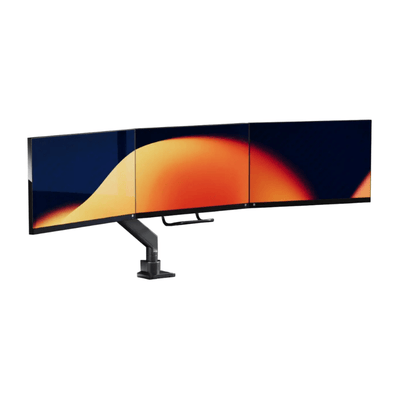
Our monitor mounts


Match the Arm to Your Monitor’s Real Weight
Monitor arms have weight ratings for a reason. A display that falls near or exceeds an arm’s limit can bounce, sag, tilt, or feel difficult to position. The issue becomes more pronounced with curved monitors, ultrawide screens, and displays with deep housings that place more weight farther from the mounting point.
Check your monitor’s weight without its original stand, then compare it with the arm’s supported range. Do not rely on screen size alone. Two 32-inch monitors can weigh dramatically different amounts, and a heavy panel on a long extension creates more leverage than the same panel positioned close to the mount.
For a single large display, select a heavy-duty arm designed for the load rather than stretching a lighter model to its maximum rating. For dual monitors, look at both the individual arm capacity and the total capacity of the base. A clean setup should look light, but its engineering should feel substantial.
If you use a laptop tray, webcam, light bar, or other accessory on the same system, account for that weight as well. Small additions can affect balance when the arm is already near its limit.
Set the Tension Before You Fine-Tune the Position
A properly installed monitor arm still needs to be calibrated. Most gas-spring arms use an adjustment screw to match the lifting force of the arm to the weight of the monitor. If the tension is too low, the monitor may drift downward. If it is too high, the screen may rise on its own or resist repositioning.
Adjust tension in small increments with the monitor attached. Make a quarter-turn, test the screen at your preferred height, then repeat if needed. The goal is controlled movement: easy enough to adjust with one hand, stable enough to stay in place once released.
Then check the tilt, swivel, and rotation joints. These joints should be firm, not locked solid. A display that changes angle whenever your desk moves needs more joint tension. Use the manufacturer-supplied tool where applicable, and avoid improvised tools that can strip adjustment points.
Keep the monitor as close to the arm’s centerline as your workflow allows. Extending an arm far forward is useful when you need it, but it increases leverage and makes any vibration more visible. For daily work, a slightly more compact arm position usually creates a cleaner look and a steadier screen.
Secure the VESA Connection and Hardware
The VESA plate is the connection between your monitor and the arm. If this connection is loose, no amount of desk-level adjustment will eliminate wobble. Check that the plate is correctly aligned, fully seated, and secured with the proper screw length.
Screws that are too long can bottom out before holding the plate firmly. Screws that are too short may not provide enough thread engagement. Some monitors also require spacers to clear a recessed VESA mounting area. Use the hardware intended for your monitor and make sure all mounting screws are tightened evenly.
Once the monitor is attached, gently hold the display at both sides and test for movement at the rear connection. Any clicking, shifting, or gap at the VESA plate should be addressed immediately. A secure connection protects both your display and the polished, intentional feel of your setup.
Manage Cables Without Creating Tension
Cable management is not just an aesthetic detail. A heavy power cable or a tightly routed bundle can pull against the monitor when the arm moves, causing the screen to tilt, twist, or recoil into a different position.
Route cables through the arm’s cable channels where possible, but leave enough slack for the full range of motion. Test the arm at its highest, lowest, closest, and farthest positions. If a cable becomes tight at any point, reroute it before finalizing the setup.
Avoid tying cables tightly to a moving arm segment and an unmoving desk point at the same time. That creates tension across the arm. A gentle service loop keeps the movement controlled while preserving the clean lines of your workspace.
Know When Wobble Is Normal and When It Is Not
No desk setup is completely immune to vibration. A light tap on the desktop may cause a brief, subtle movement, especially with a large screen on an extended arm. That is normal. The standard to aim for is fast recovery: the monitor should settle quickly and remain stable during normal work.
Persistent bouncing, visible movement while typing, a drifting screen, or a base that shifts on the desk are not normal. These signs usually call for a closer look at capacity, mounting position, or the desk itself. In some cases, upgrading from a basic arm to a heavy-duty design is the most efficient solution. A premium workspace is built around confidence, not constant adjustment.
A stable monitor changes the way a desk feels. The screen stays centered, your posture stays more consistent, and your attention remains on the work in front of you. Build the foundation carefully, make small adjustments with purpose, and let your setup deliver the calm, controlled performance your day requires.