

A screen that is only slightly out of position can make a long workday feel unnecessarily heavy. When you adjust monitor tilt with intention, text becomes easier to read, reflections fade, and your posture has less work to do. It is a small movement with an outsized effect on comfort, focus, and the visual balance of your desk.
Tilt is often treated as an afterthought, especially when a display is mounted at the right height. But height and tilt work together. A monitor can sit at eye level and still force you to crane your neck, lean forward, or fight glare if its viewing angle is wrong.
Why Monitor Tilt Changes the Way You Work
Monitor tilt controls the angle of the screen relative to your eyes. For most desk setups, the top edge of the display should sit at or just below eye level, while the screen itself tilts slightly upward toward you. That slight adjustment helps the display face your natural line of sight instead of asking you to change your posture to meet it.
The right angle is not identical for every person or every desk. Your chair height, torso length, monitor size, viewing distance, prescription lenses, and whether you sit or stand all matter. A 27-inch monitor positioned farther back may need a different tilt than a compact display used at close range. The goal is not to copy a fixed number of degrees. The goal is to create a view that feels neutral from your normal working position.
There is also a visual reason to get this right. Overhead lights and windows can wash out dark areas of a screen or create distracting reflections. Before turning down brightness or moving your entire desk, try a modest tilt adjustment. Often, the screen angle is the quickest path to a cleaner image.
How to Adjust Monitor Tilt in Four Moves
Start from the position you actually use, not the posture you think you should have. Sit back in your chair, place your feet flat on the floor, and let your shoulders relax. If you work from a sit-stand desk, set the height for the position you use most often, then refine the angle for the other position later.
1. Set the monitor height first. Position the top of the screen at or a little below eye level. If you use progressive lenses or bifocals, you may prefer it slightly lower to avoid lifting your chin.
2. Center the display in front of you. Your primary monitor should align with your keyboard and body. Turning your neck all day is a positioning problem, not something a better tilt can fully solve.
3. Tilt the top edge toward you slightly. Begin with a subtle upward tilt of roughly 10 to 20 degrees. Read a paragraph, scan a spreadsheet, and look at the top and bottom of the display. The image should stay clear without making you bend your neck down or tip your head back.
4. Check glare at your normal working hours. A setup can look perfect in the morning and fail when afternoon light enters the room. Make a minor adjustment while the glare is present, rather than guessing after it disappears.
Use small movements. A few degrees can change the experience more than you expect, particularly on larger displays. Once the angle feels right, work for 20 to 30 minutes before making another change. Your body needs a little time to tell you whether the position is genuinely comfortable or merely different.
The Best Tilt Angle Depends on Your Setup
A slight backward tilt, with the top of the screen closer to you than the bottom, works well for many seated setups. It follows the natural downward direction of your gaze while keeping the full display in view. However, a more upright screen may be better if your monitor sits lower than usual or if you need precise color and image consistency for creative work.
For standing desks, monitor tilt becomes even more personal. Standing can change your eye level and the distance between you and the screen. If you raise your desk but leave the monitor at the same angle, you may find yourself looking down too sharply. A monitor arm with independent height and tilt control makes these transitions faster and more precise.
Laptop users face a separate challenge. Tilting a laptop screen can improve visibility, but it may also place the keyboard at an awkward angle if the device is your only input tool. For longer work sessions, elevate the laptop display and use an external keyboard and mouse. This lets you position the screen for your eyes without compromising your wrists.
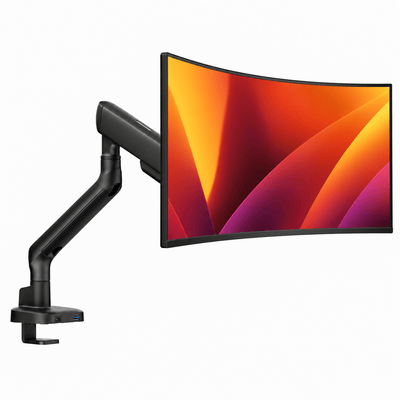
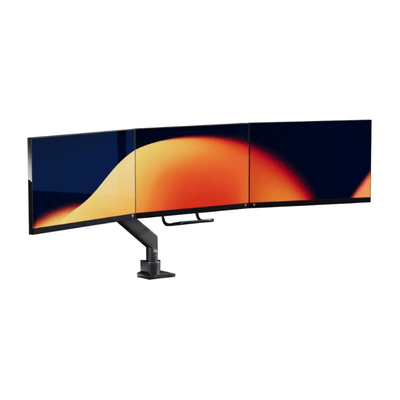
Our monitor mounts

Signs Your Monitor Needs an Adjustment
Discomfort rarely announces itself all at once. It often appears as small habits that become normal: leaning forward to read, rubbing your eyes after a video call, shifting your chair repeatedly, or tilting your head to avoid a reflection. Those signals are worth noticing.
If the top of your screen looks darker or harder to read than the center, the tilt may be too extreme. If you see overhead lights reflected across the display, the screen may be too upright or pointed toward the light source. If your neck feels tight at the base of your skull, check both height and tilt before blaming your chair.
A good screen position should feel almost unremarkable. You should be able to move between writing, reading, and meetings without constantly readjusting your head. That is the standard: less compensation, more concentration.
Dual Monitors Require a Different Approach
With two displays, the primary screen deserves the most direct position. Place it in front of you, then angle the secondary monitor inward so it creates a gentle curve around your workspace. Avoid setting both displays flat in a straight line unless they are very close together. That arrangement can require more neck rotation than most people realize.
Tilt both screens to create a consistent visual plane, but do not assume they need identical settings. A vertical monitor used for documents may need a slightly different angle than a horizontal screen used for design work or video. What matters is that your eyes can move from one display to the other without a sharp shift in focus or posture.
This is where a quality double monitor mount earns its place. Independent adjustment gives you the freedom to refine each screen instead of accepting a compromise. It also clears desk space, making the setup feel lighter, more intentional, and easier to maintain.
Keep the Adjustment Stable
The best tilt setting is not useful if the monitor slowly drifts during the day. If your display dips forward or will not hold its angle, first check the mount's tilt tension. Most monitor arms include a tension adjustment designed to match the weight of the screen. Make small changes, test the movement, and stop once the monitor holds its position without requiring excessive force to move.
Do not overtighten the mechanism. A mount should feel controlled, not locked in place. You may want to reposition the screen for a presentation, collaboration session, or shift between sitting and standing. Premium hardware should make that movement feel smooth and deliberate while holding firm when you are done.
Before installing any monitor arm, confirm that its weight capacity supports your display, including the stand-free weight and any accessories attached to it. A properly matched mount protects the monitor, improves adjustability, and gives your desk a more composed silhouette. Alberenz designs its workspace hardware around that balance of heavy-duty support and clean, modern control.
Build a Better Viewing Routine
Recheck your screen angle whenever something changes: a new chair, a different desk height, a larger monitor, a move to another room, or a shift in lighting. Even a new pair of glasses can alter the position that feels best.
Treat tilt as part of the setup, not a one-time installation detail. The right angle keeps your display working with you, so your focus stays on the work, the game, or the idea in front of you.



