

A screen that sits a few degrees off can change the entire feel of your workday. You lean forward to read, lift your chin during calls, or catch glare whenever the sun shifts. Learning how to optimize screen angle is one of the fastest ways to make a desk feel more focused, comfortable, and intentional.
The right position is not about forcing your body into a rigid pose. It is about placing the display where your eyes, neck, and shoulders can stay relaxed while you work. With a few measured adjustments, your monitor becomes part of a high-performance workspace instead of the reason you keep resetting your posture.
Start With Your Natural Sitting Position
Before touching the monitor, set the position you want to maintain. Sit all the way back in your chair with your feet supported and your shoulders relaxed. Your elbows should rest comfortably near your sides, rather than reaching forward toward the desk.
This matters because screen placement only works in relation to your body. If you set the angle while perched at the edge of your seat, then settle into a more natural position later, the display will no longer meet your line of sight. Build the setup around the way you actually work, not the pose you can hold for thirty seconds.
Keep your keyboard and mouse close enough that your forearms are supported and your wrists remain neutral. Once those inputs are in place, your viewing distance and screen angle become much easier to dial in.
Set Screen Height Before Fine-Tuning the Angle
For most people, the top edge of the active screen should sit at or slightly below eye level. This lets your gaze fall naturally into the upper third of the display without tipping your head backward. If you wear progressive lenses or spend much of the day reviewing dense documents, a slightly lower monitor often feels better because it reduces the need to lift your chin.
Height comes first because tilt cannot solve a screen that is fundamentally too low or too high. A low display encourages a forward head position even when angled perfectly. A high display can create neck tension even if it is tilted down toward you.
The goal is simple: your eyes should land on the screen without a deliberate effort to look up, down, or around. A monitor mount or riser gives you the adjustment range to achieve that position without building an unstable stack of books beneath the display.
Use Your Eyes as the Reference Point
Do not rely on an arbitrary desk measurement. Monitor sizes, chair heights, torso lengths, and visual needs vary too much for one number to fit every setup. Instead, sit comfortably, close your eyes for a moment, and open them. Notice where your gaze lands naturally. That point should be close to the upper third of your primary screen.
If your eyes consistently land below the display, raise it. If they land above the top edge, lower it. Small changes make a bigger difference than most people expect.
How to Optimize Screen Angle Without Creating Glare
Once screen height is right, tilt the top of the monitor slightly away from you. For a typical flat display, a modest backward tilt of roughly 10 to 20 degrees is a strong starting point. This orientation generally follows the natural downward path of your gaze and keeps the screen plane comfortable for long sessions.
The best angle depends on where the monitor sits relative to your eyes. A display positioned slightly below eye level usually benefits from a little more backward tilt. A higher display needs less tilt, since too much can turn the panel into a reflective surface and make you lift your chin to see the bottom clearly.
Glare is the real-world test. Turn the monitor off or open a dark window, then look for reflections from windows, overhead fixtures, lamps, and bright walls. Adjust the screen a few degrees at a time until reflections move out of your primary viewing area. If glare persists, reposition the light source when possible rather than forcing the monitor into an awkward angle.
Avoid placing your screen directly in front of or directly behind a bright window. A window to the side is usually easier to manage. If your room layout gives you limited options, a mount with smooth tilt and swivel adjustment makes those small corrections much more practical.
Onze monitorbeugels

Find the Right Viewing Distance
Angle and distance work together. A monitor positioned too close can make you feel visually crowded, even at the right height. One positioned too far away can cause squinting and unconscious forward leaning.
A useful starting range is about an arm's length from your eyes, though screen size and text scaling matter. Larger monitors often need more distance, while a compact laptop screen may need to sit closer. The test is whether you can read comfortably with your back against the chair and your head balanced over your shoulders.
If you keep leaning in, first increase text size or adjust display scaling. Moving the monitor closer should not be the only answer. A refined setup supports clear viewing without asking your body to compromise.
Adjust Brightness Along With Position
Screen brightness can make a correct angle feel wrong. A display that is much brighter than the room creates visual fatigue, while one that is too dim leads to squinting. Match brightness to the ambient light, then reassess the angle.
During daytime work, you may need a brighter setting to compete with natural light. In the evening, lowering brightness can reduce the harsh contrast between the display and the room. The ideal setup changes slightly as conditions change, so treat adjustment as part of maintaining your workspace, not a one-time task.
Position Dual Monitors for the Work You Actually Do
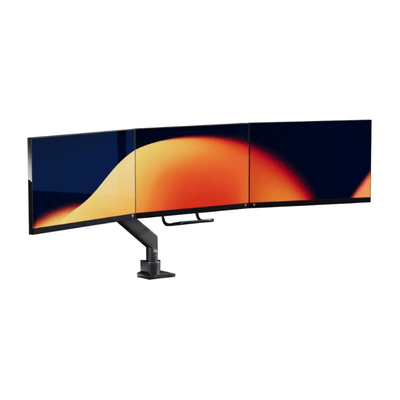
A dual-monitor desk has different rules because there is no single center point. If one monitor handles most of your work, place it directly in front of you and position the secondary display beside it. Angle the secondary screen inward so you can view it with a small eye movement and gentle head turn, not a repeated torso twist.
If both monitors receive equal attention, arrange them in a shallow V shape with the inner edges close together. Your body should sit centered at the point where the displays meet. The top edges should align as closely as possible, and both screens should sit at a similar viewing distance.
Very wide dual-screen arrangements can look impressive but may not be ideal for every task. If you spend the day moving between spreadsheets, timelines, or dashboards, a more pronounced inward angle can reduce neck rotation. If your work is primarily creative, visual, or communication-based, a broader layout may give you useful peripheral space. The better choice is the one that reduces repeated strain while keeping essential information easy to scan.
Treat a Laptop as a Screen, Not a Permanent Desk Position
Laptop screens create a built-in compromise because the keyboard and display are attached. If the screen is high enough for your neck, the keyboard is usually too high for your wrists. If the keyboard is at a comfortable height, the screen is often too low.
For longer desk sessions, raise the laptop screen with a dedicated laptop mount or stand and use an external keyboard and mouse. Position the laptop display using the same principles as a monitor: near eye level, at a comfortable distance, with a slight backward tilt if needed. This separates the screen from the typing surface and gives your setup the flexibility it needs.
If you use a laptop alongside a monitor, make the display you use most your primary screen. The laptop can sit slightly to the side, angled inward, for chat, notes, music controls, or reference material. Avoid placing it low and directly in front of you if it constantly pulls your gaze downward.
Make Micro-Adjustments, Then Give Them Time
The final few degrees matter, but do not judge a new setup after five minutes. Work in the position for a day or two and pay attention to patterns. Do your shoulders creep upward? Does your neck feel stiff after video calls? Are you turning toward one display more than expected?
Make one adjustment at a time. Raise the monitor slightly, reduce the tilt, move it back an inch, or bring a secondary screen inward. Changing everything at once makes it hard to identify what improved the experience.
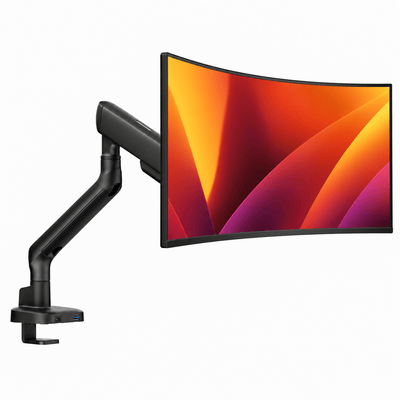
A premium monitor mount earns its place here. It lets you refine height, tilt, swivel, and distance without tools, clutter, or compromise. Alberenz setups are designed for exactly this kind of control: the strength to hold your screen with confidence and the clean adjustment range to make the desk work around you.
Your screen angle should disappear from your attention once it is right. The display feels clear, your posture feels natural, and the desk supports the work instead of interrupting it. Take the extra minute to adjust it well, and let every hour that follows feel more considered.



