

A laptop sitting flat on the desk asks your body to compromise. Your eyes angle down, your shoulders round forward, and the machine that powers your work claims far more surface area than it deserves. The best laptop mount for desk setups changes that equation. It raises your screen into a more natural sightline, clears room beneath it, and gives the entire workspace a more deliberate feel.
That does not mean every mount is right for every desk. A compact MacBook used beside a large monitor has different needs than a 16-inch workstation laptop or a gaming setup that gets moved constantly. The right choice comes down to how you work, the weight and size of your laptop, your preferred display height, and the kind of visual order you expect from your desk.
What Makes the Best Laptop Mount for Desk Setups?
The best mount is not simply the one that holds a laptop above the desk. It should position your device securely, adjust with enough range to suit your posture, and stay visually quiet while doing it. Premium hardware earns its place by making the workspace feel easier to use every day, not by adding another mechanism to manage.
Start with stability. A laptop platform should hold the device firmly without wobble as you type, connect cables, or adjust the screen. Look for a solid metal build, a properly sized tray, and protective pads that prevent the laptop from slipping or collecting scratches. If you use a heavier 15- or 16-inch model, capacity is more than a spec to skim. A mount operating near its limit can feel less controlled and may sag over time.
Adjustment is equally valuable. Static risers work well when your desk layout never changes, but an articulating laptop arm gives you more control over height, depth, tilt, and screen alignment. That flexibility matters if you share a desk, switch between focused work and video calls, or use a sit-stand desk. A well-designed gas-spring arm should move smoothly and remain in place when released.
Finally, consider the mount as part of the room. The cleanest desk setups are not empty. They are intentional. A refined laptop mount reduces visual clutter by lifting the device, routing cables more discreetly, and creating negative space around the tools you use most.
Choose a Mount Style That Matches Your Workflow
There are three common directions, and each suits a different kind of setup.
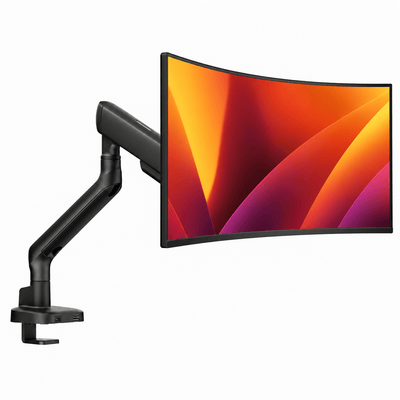
Laptop tray on an adjustable monitor arm
For most professionals, creatives, and hybrid workers, an adjustable arm with a dedicated laptop tray offers the strongest mix of ergonomics and flexibility. It can bring the laptop to eye level, move it closer for detailed work, or push it back when you need more desk depth. It is especially effective when the laptop serves as a second screen beside an external monitor.
This approach works best when your laptop stays connected to power and peripherals for long stretches. It also makes the desk feel more open, since the tray hovers above the surface rather than occupying it. The trade-off is that the arm needs a secure mounting point and enough clearance to move freely.
Laptop-monitor combination mount
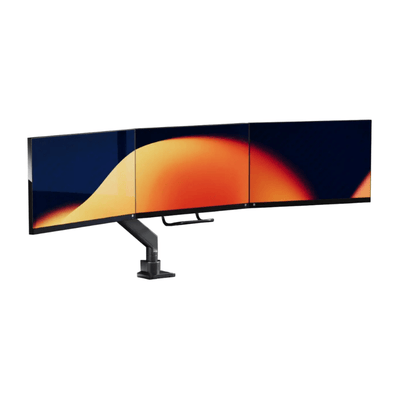
A laptop-monitor mount is built for people who want one cohesive dual-screen system. The monitor and laptop sit on separate arms or attachment points, allowing both displays to be aligned at a comfortable height. For anyone editing, coding, designing, managing spreadsheets, or working across multiple windows, this configuration is often the most efficient.
Alignment matters here. Your primary monitor should generally sit directly in front of you, while the laptop screen can sit slightly to the side. Trying to center both screens forces a compromise. Put the display you use most in the best position, then place the secondary screen where it supports the workflow without pulling your neck into a constant turn.
Fixed desktop laptop stand
A fixed stand is the simple answer for a laptop-only desk or a smaller workspace. It provides elevation without clamps, arms, or installation. This can be a strong choice for renters, occasional remote workers, or anyone who regularly packs up their setup.
The limitation is obvious: fixed height is fixed height. If you are tall, use an unusually deep desk, or change chairs often, a stand may not give you the range needed for a truly tailored position. It also consumes desk surface, although far less than a laptop placed flat.
Get the Ergonomics Right Before You Buy
A laptop mount is a posture upgrade only when it is set correctly. Your screen should sit at or slightly below eye level, with the top third of the display in a comfortable viewing zone. You should be able to look forward, not downward, for the majority of the day.
Once the laptop is elevated, use an external keyboard and mouse. This is the essential pairing. Typing directly on a raised laptop tray puts your arms too high and interrupts the ergonomic benefit of lifting the screen. Place the keyboard at a height that allows your elbows to rest near a 90-degree angle and keep your shoulders relaxed.
Distance matters as much as height. Most people are comfortable with the screen roughly an arm's length away, though text size, visual preferences, and display resolution change the ideal measurement. If you find yourself leaning forward to read, move the screen closer or increase the scaling. If your eyes feel strained by a close display, create more distance before lowering the screen.
For a sit-stand desk, choose a mount with enough vertical travel to preserve screen height when the desk rises. The desk and arm move together, but your preferred relationship to the display should remain consistent. Test the full range rather than judging the setup only while seated.
Monitortartóink

Check Compatibility: The Details That Prevent Regret
A premium-looking mount can still be the wrong purchase if it does not fit your desk, laptop, or working habits. Confirm these practical details before committing:
- Laptop size and weight: Measure your device and compare it with the tray dimensions and stated load range. Account for a protective case if you keep one on.
- Desk thickness and material: Clamp mounts need a stable edge within their supported thickness range. Very thin desktops, fragile glass, and hollow-core surfaces may need extra care or a different mounting method.
- Mounting style: A C-clamp is easy to install and remove. A grommet mount offers a more integrated look if your desk has, or can accommodate, a cable hole.
- Arm clearance: Check the space behind the desk and near walls. Some arms need rear clearance to extend or retract properly.
- Cable access: Think about charging, display output, storage drives, and accessories. The best visual result is useless if the cables pull tight whenever you reposition the laptop.
Build a Setup That Looks as Good as It Performs
Mounting a laptop does more than create a little extra space. It gives the desk a hierarchy. The screens become the visual center, the keyboard and mouse form the active zone, and everything else can be placed with intention.
Keep everyday tools within easy reach, then move chargers, hubs, and less frequently used accessories out of the immediate work area. A monitor arm with integrated cable management can help carry lines along the mount rather than across the desktop. The result is not sterile minimalism. It is a desk that makes starting work feel more focused.
Finish matters, too. A heavy-duty mount in a clean, modern finish can complement a premium monitor, mechanical keyboard, and desk surface without competing for attention. This is where low-cost hardware often reveals its compromise: bulky joints, visible fasteners, thin trays, and a finish that looks out of place next to the rest of a considered setup.
When a Laptop Mount Is Not the Best Choice
There are cases where a mount is unnecessary. If you primarily use your laptop away from the desk, a portable stand may be more practical. If you only work at your desk for brief sessions, the time and cost of an arm system may not deliver meaningful value. And if your laptop screen is almost never used because you rely entirely on one external monitor, a vertical laptop holder can free space more efficiently.
Still, for people who spend long hours moving between laptop and monitor, the difference is immediate. Better sightlines reduce the urge to hunch. A clear desk improves access to the tools that matter. And a stable, adjustable platform makes your setup feel built around your work instead of assembled around its limitations.
The best choice is the one that supports your device without demanding attention from you. Choose a mount with the strength, range, and finish your workspace deserves, set it to your body rather than a generic diagram, and let the desk do what it should: make great work feel easier to begin.